
Node right-click menu
Additional options for layout and extraction of subtree data are available when right-clicking the nodes (figure 26.14).
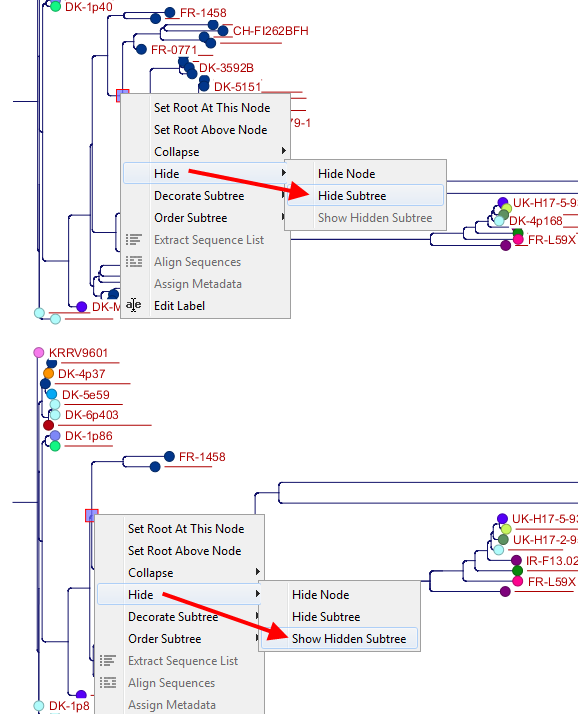
Figure 26.14: A subtree can be hidden by selecting "Hide Subtree" and is shown again when selecting "Show Hidden Subtree" on a parent node.
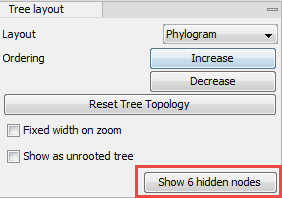
Figure 26.15: When hiding nodes, a new button labeled "Show X hidden nodes" appears in the Side Panel under "Tree Layout". When pressing this button, all hidden nodes are brought back.
- Set Root At This Node (only available on internal nodes). Re-roots the tree using the selected node as root. Please note that re-rooting will change the tree topology.
- Set Root Above Node. Re-roots the tree by inserting a node between the selected node and its parent. Useful for rooting trees using an outgroup.
- Collapse (only available on internal nodes). Collapses branches under the selected node with or without the associated labels. Collapsed branches can be uncollapsed using the Uncollapse option in the same menu.
- Hide. Hides the selected node or the subtree under it. Hidden nodes or subtrees can be shown again using either the Show Hidden Subtree right-click option on a node above the hidden nodes (see figure 26.14) or by clicking the button labeled "Show X hidden nodes", which appears in the Side Panel under "Tree Layout" when any nodes are hidden (figure 26.15).
- Decorate Subtree (only available on internal nodes). Adds custom labels, branch color, or background color to the subtree under the selected node.
- Order Subtree (only available on internal nodes). Rearranges leaves and branches in a subtree by increasing or decreasing depth. Alternatively, change the order of a node's children by left-clicking and dragging one of the node's children.
- Extract Sequence List. Extracts the sequences associated with the selected leaf nodes to a new sequence list.
- Align Sequences. The sequences associated with the selected leaf nodes are extracted and used as input to the tool Create Alignment.
- Add Attributes. Adds a new attribute column to the selected node(s) using the name and value you provide. If the attribute already exists, the new value will overwrite the existing one for the selected node(s). Attributes can also be modified in the Tree Table view.
- Edit label. Changes the label of the selected node. This also updates the associated attribute value, i.e., if the label is set to show the values of the "Latin name" attribute, the "Latin name" value will also update in the Tree Table view.
Labels can be shown or hidden by using the Label settings or Metadata options in the Side Panel.