
Viewing mode
CLC Workbenches can be run for free in Viewing Mode. Using Viewing Mode does not require a license, and can be used to view and export data. In addition, some types of data can be imported and some basic bioinformatics analysis tools are available.
Viewing Mode can be particularly useful when sharing data with colleagues or reviewers who do not have access to a Workbench license.
Data viewing
Any data type supported by the Workbench can be viewed in Viewing Mode. Plugins or modules can also be installed when in Viewing Mode, expanding the range of data types supported.
Import, export and analysis in Viewing Mode
When working in Viewing Mode, supported import and export functionality can be accessed by clicking on the Import and Export buttons in the top Toolbar, respectively. Other tools available are listed in the Workbench Tools menu (figure 1.2).
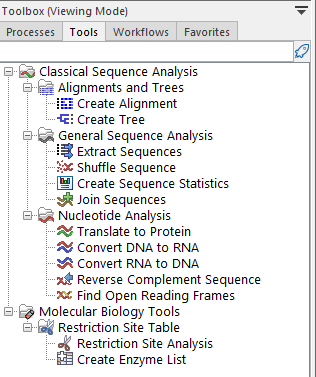
Figure 1.2: Some basic tools are available in Viewing Mode.
Starting a CLC Workbench in Viewing Mode
Click on the button labeled Viewing Mode to start the Workbench in this mode. This button is presented in various dialogs, including at the bottom of the License Assistant when a Workbench is started up and it does not (yet) have access to a valid license (figure 1.3).
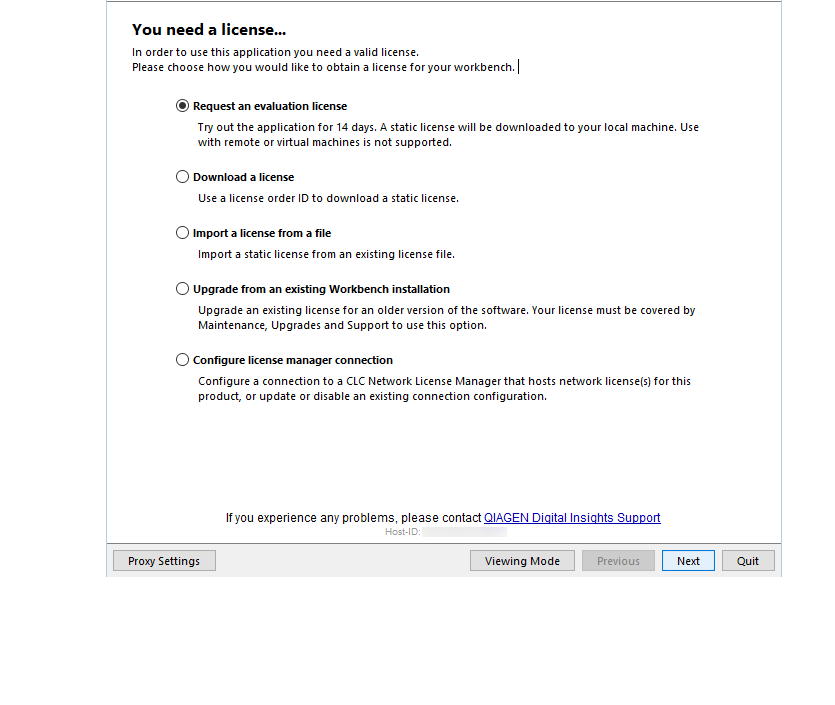
Figure 1.3: Click on the Viewing Mode button, here shown at the bottom of the License Assistant, to launch the Workbench in Viewing Mode.
Starting a licensed CLC Workbench from Viewing Mode
To go from Viewing Mode to running a Workbench with full functionality:
- Open the License Manager by going to:
Help | License Manager (
 )
)
- Click on the Update License Details button to open the License Assistant.
- Choose the relevant option to provide a license for the Workbench (see Workbench Licenses).
- Restart the Workbench when prompted.