
Annotate with Overlap Information
The tool Annotate with Overlap Information creates a copy of the input track and adds information from overlapping annotations.
To start the tool, go to:
Tools | Utility Tools ( ) | Tracks (
 ) | Modify Tracks (
 ) | Annotate with Overlap Information (
 )
)
First, select the track you wish to annotate and click Next. You can choose variant tracks, expression tracks or statistical comparison tracks as input. Next, select the annotation track to be used for overlap comparison. The requirement for being registered as an overlap is that parts of the annotations are overlapping, regardless of the strandedness of the annotations: this makes it unsuitable for comparing two gene tracks, but great for annotating variants with overlapping genes or regulatory regions.
The following options can be configured (see figure 28.36):
- Collapse duplicate attributes: If annotating with overlap information results in duplicate attributes due to multiple overlaps, the same attribute will only appear once.
- Copy attributes: Copy all attributes from the overlap annotation. When unchecked, only the name of the annotation and the overlap track is used for annotating.
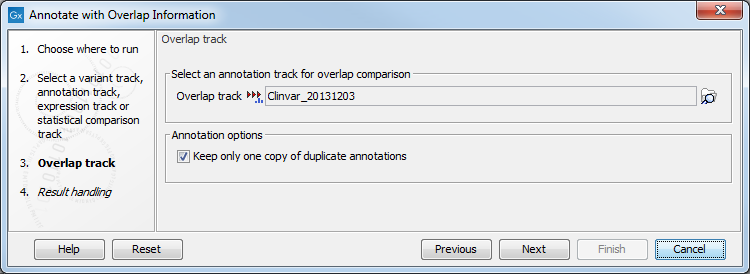
Figure 28.36: Choose an overlap track for annotating your input track.
The tool outputs a track with all the annotations from the input track and with additional information from the annotations that overlap from the other track. Annotations are visible in the tooltips that appear when hovering the mouse on a variant in the Track view, or as additional columns in the Table view of the track.