
Label settings
- Label font settings. Adjusts the font type, size, typography (Bold, Italic or normal), and color.
- Hide overlapping labels. Disables automatic hiding of overlapping labels and displays all labels even if they overlap.
- Show internal node labels. Changes whether labels for internal nodes of the tree are shown (if present). Subtrees and nodes can be labeled with custom text. This is done by right-clicking the node and selecting Edit Label (see figure 26.9).
- Show leaf node labels. Changes whether leaf node labels are shown.
- Rotate Subtree labels. Subtree labels can be shown horizontally or vertically. Labels are shown vertically when "Rotate subtree labels" has been selected. Subtree labels can be added by right-clicking an internal node and selecting Decorate Subtree | Set Subtree Label.
- Align labels. Aligns labels to the node furthest from the center of the tree. The exact behavior depends on the selected tree layout.
- Connect labels to nodes. Adds a thin line from the leaf node to the aligned label. Only possible when Align labels option is selected.
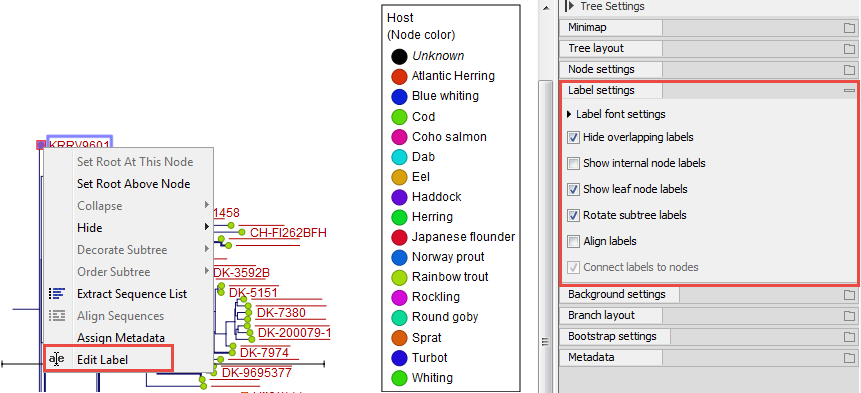
Figure 26.9: "Edit label" in the right-click menu can be used to customize the label text. The way node labels are displayed can be controlled through the labels settings in the right side panel.
When working with large trees there is typically not enough space to show all labels. As illustrated in figure 26.9, only some of the labels are shown. The hidden labels are illustrated with thin horizontal lines.
There are different ways of showing more labels. One way is to reduce the font size of the labels, which can be done under Label font settings in the Side Panel. Another option is to zoom in on specific areas of the tree (figure 26.10). The last option is to disable Hide overlapping labels under "Label settings" in the right side panel. When this option is unchecked all labels are shown even if the text overlaps. When allowing overlapping labels, it is usually a good idea to disable Show label background under "Background settings" (see section 26.2.5).
Note: When working with a tree with hidden labels, it is possible to make the hidden label text appear by moving the mouse over the node with the hidden label.
Note: The text within labels can be edited by editing the corresponding attribute values in the Table view directly.
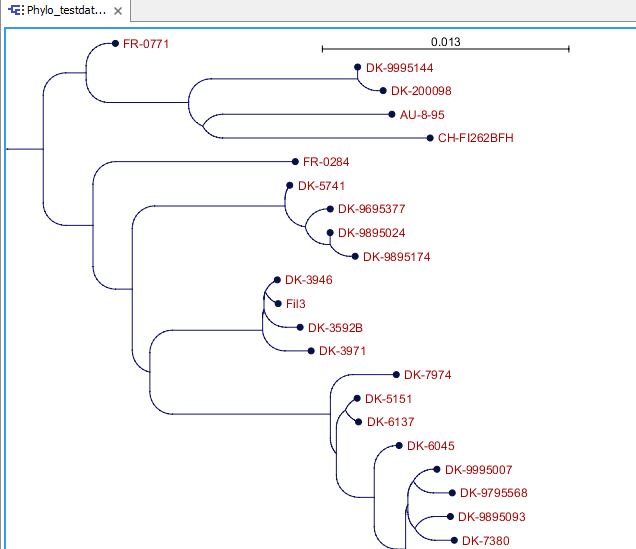
Figure 26.10: After zooming in on a region of interest, more labels become visible. In this example all labels are now visible.