
Setting custom attribute values
Values for custom attributes are assigned to a data element by editing the values in its Element Info view (figure 3.14) or in the table view of a folder's contents.
Note: After editing attribute values in the Element Info view, be sure to save the changes to the element. Changes made via a folder table view are saved automatically.
Changes made to custom attribute values are recorded in the element's history.
Before a value is assigned to a given custom attribute, the text "Not set" appears in red in the data element's Element Info view (figure 3.15). In the table view, an unset attribute is represented by an empty cell.
To reset an attribute value in the Element Info view, click on "Clear" beside the attribute name. This returns it to the "Not set" state.
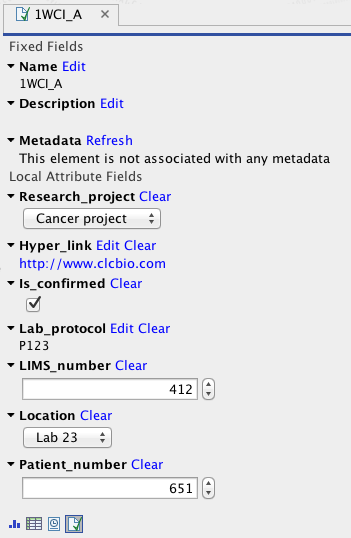
Figure 3.14: Custom attribute values are added and edited in the Element Info view of a data element.
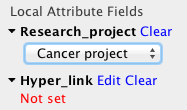
Figure 3.15: "Not set" is displayed in red text in the Element Info view for the Hyper_link attribute because no value has been set for that attribute.
The updated, saved attribute information can be searched for, as described in Searching custom attributes.