
Download Genomes (Legacy)
Download Genomes is legacy functionality and will be retired in a future release. Importing genomes and associated reference data from public repositories can be carried out using other functionality in the CLC Genomics Workbench. To download and import reference data hosted by QIAGEN, see QIAGEN Sets.
If you have concerns about this planned retirement, please contact QIAGEN Bioinformatics Support team at ts-bioinformatics@qiagen.com.
To access Download Genomes (Legacy):
- Open the Reference Data Manager by clicking the Manage Reference Data (
 ) button in the top Toolbar or go to the Utilities menu and select Manage Reference Data ().
- Click the Download Genomes (Legacy) tab.
Organisms for which data can be downloaded and imported are listed on the left hand side (figure 39.1). The number in a circle to the left of each organism name indicates how many previously downloaded data sets are available in the CLC_References location for that organism.
After selecting an organism in the list, information about the data available for download is shown in the middle section of the right hand panel, including a name describing the data resource type, a version (if available), the data provider, and the file size.
Note: Most data is supplied as a compressed text file. After download, each file is decompressed and the data is imported. CLC data is compressed by default, but the size of the compressed data after import will generally be different to the size reported for the original data file.
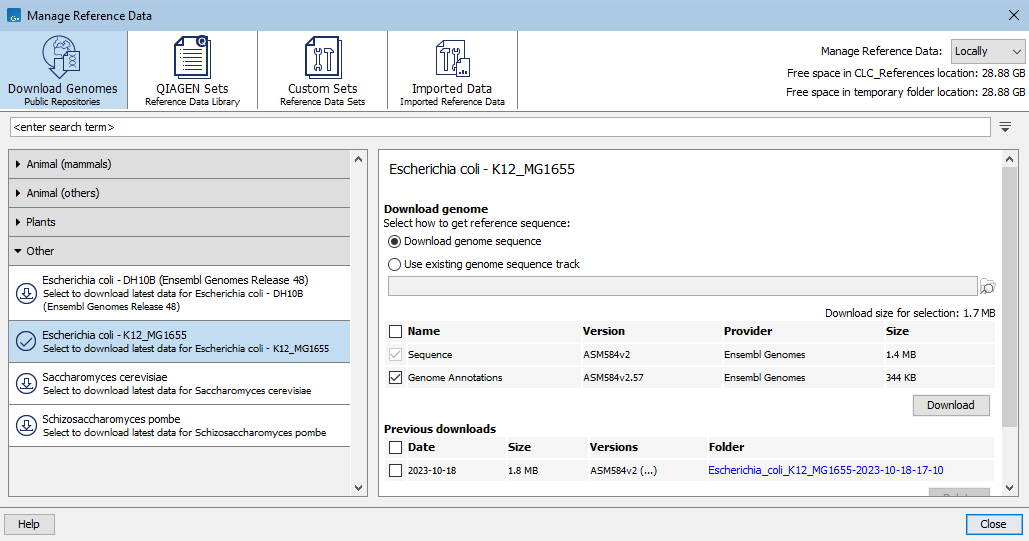
Figure 39.1: Under the Download Genomes (Legacy) tab, reference sequences and associated reference data for a variety of organisms can be downloaded from public repositories.
Data selected will be imported as tracks. When importing annotations, variants, and other types of data, a genome sequence track is needed to provide the genomic coordinates that all the imported tracks will share. The radio buttons under "Select how to get reference sequence:" offer the choice of using the track that will be created from sequence data being downloaded ("Download genome sequence") or using a sequence track already available ("Use existing genome sequence track").
Download and import
Select the data types of interest and click the Download button. The data will then be downloaded from the public repository and subsequently imported.
When reference data is stored on a CLC Server with grid nodes, the grid preset to use to download data can be specified via a drop-down menu to the left of the Download button (figure 39.2).
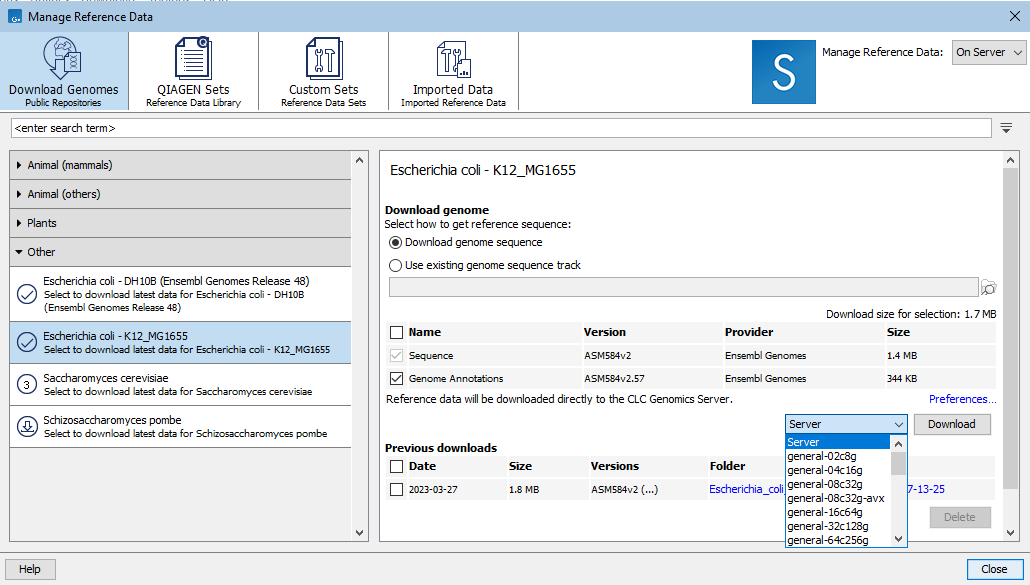
Figure 39.2: When the "On Server" option, top right, is selected and grid presets are configured on the CLC Server, a grid preset to use for the download can be selected.
When genome annotations are imported, a track is created for each feature type present in the annotation file.
In addition, depending on the annotation source, tracks containing sets of related features may also be created. These tracks have names ending in "(RNA)" and "(Gene)" (figure 39.3) and can be useful for some types of analyses, e.g. RNA-Seq. The (RNA) track contains entries for all "RNA" type annotations. I.e. all the children of "mature_transcript", which is the parent of "mRNA", which is the parent of the "NSD_transcript". The (Gene) track contains genes and gene-like annotation types, such as ncRNA_gene, plastid_gene, and tRNA_gene.
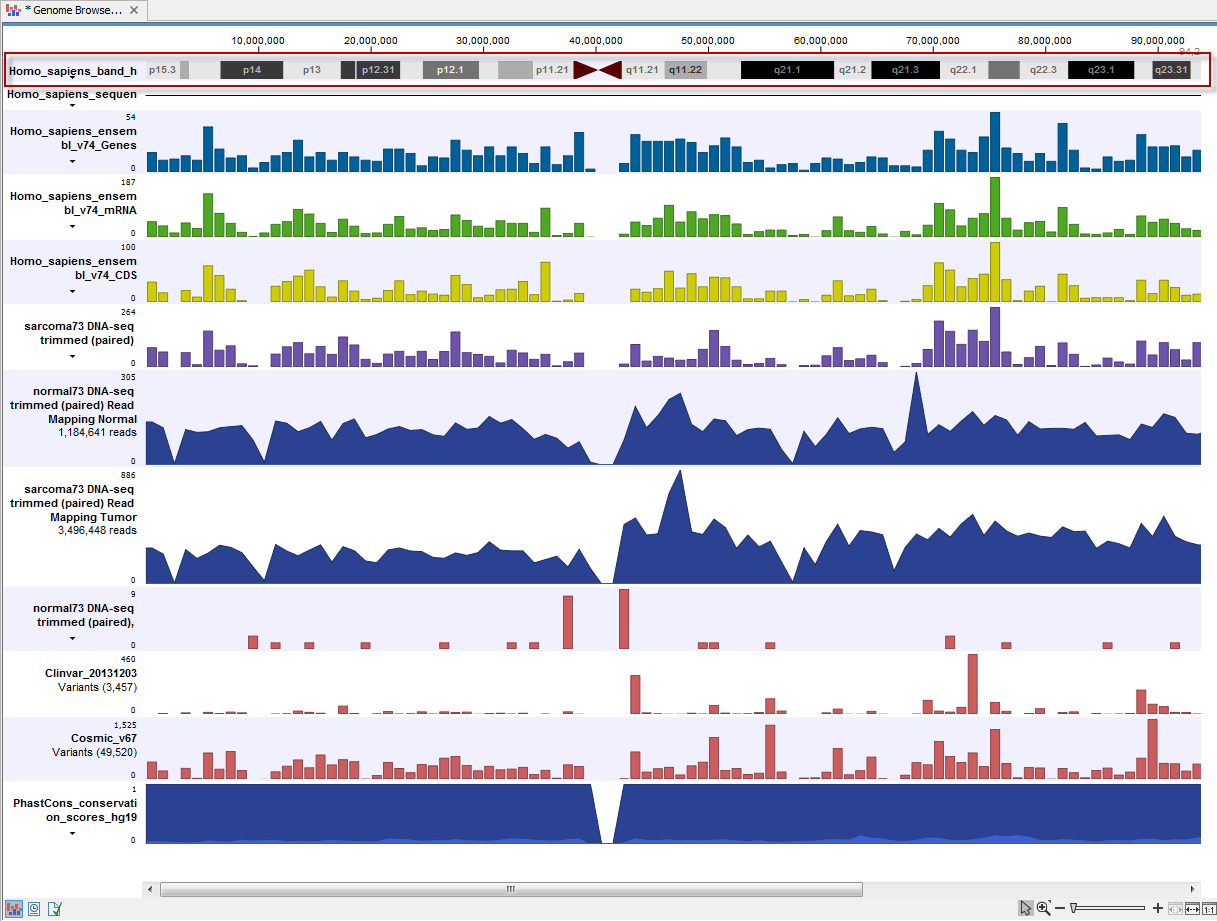
Figure 39.3: A track list containing some of the tracks created by Download Genomes for the Homo Sapiens hg38 genome.
Finding and deleting data imported using Download Genomes (Legacy)
The imported tracks are stored under the CLC_References location, under the "Genomes" folder. Each downloaded set is placed in a folder with a name containing the species name and the date of the download.
To easily navigate to the imported tracks in the Navigation Area, click on a link under the Folder column in the "Previous downloads" section at the bottom of the right hand panel in the Reference Data Manager. This moves the focus in the Navigation Area to the location of the downloaded data.
Hovering the mouse cursor over information in the Versions column in the "Previous downloads" section reveals a tooltip with a list of the resources downloaded and, if available, the version of each (figure 39.1).
To delete data, select one or more entries in the list of previous downloads and click the Delete button. When the data is stored on a CLC Server, you must be logged in from the Workbench as a user with permissions to delete data stored in the CLC_References server location.
Searching for data available under the Download Genomes (Legacy) tab
The search field under the top toolbar can be used to search for terms in the names of organisms, resources, and resource providers. To search for just an exact term, put the term in quotes.
The results include the name of the element or set the term was found in, followed by the tab it is listed under, in parentheses. Hover the cursor over a hit to see what aspect of the result matched the search term (figure 39.4). Double-click on a search result to open it.
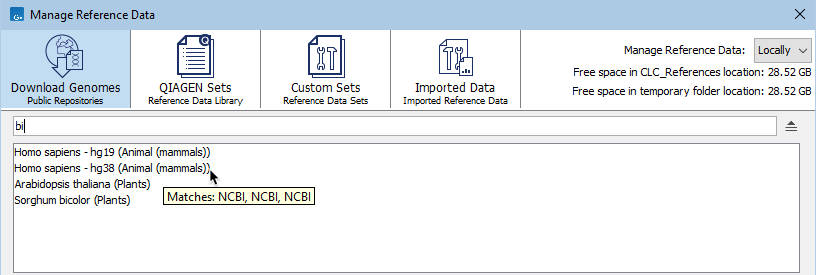
Figure 39.4: When the Download Genomes (Legacy) tab is selected, terms entered in the search field are searched for in the names of organisms, resources, and resource providers. Hovering the cursor over a hit reveals a tooltip with information about the match.