
Sorting tables
The order of the rows in a table can be sorted according to the contents of one or more columns by clicking on column headings, using options in a menu opened by right-clicking on the headings, or a combination of both. This menu includes an option to lock the row order, allowing further work to be done without inadvertently re-ordering the table.
The row order after sorting is not saved. When an element is closed and re-opened, table rows will be in the original, default order.
Sorting a table based on column content
- Sort by clicking column headings
Clicking a column heading sorts the rows of the table according to the contents of that table:
- First click sorts the table in ascending order.
- Second click sorts the table in descending order.
- Third click restores the original row order.
To refine the order based on the contents of additional columns, hold down the Ctrl key (
 on Mac) while clicking the headings. The rows are then further sorted according to the values of those columns, in the order their headings were clicked.
- Sort by using menu options
- Right-click a column heading to open a menu containing sorting options (figure 9.2):
- Restore Default Order Restore the default row order.
- Sort by <column name> A to Z Sort rows in ascending order based on the contents of this column.
- Sort by <column name> Z to A Sort rows in descending order based on the contents of this column.
- Then Sort by <column name> A to Z and Then Sort by <column name> Z to A Refine the current row order based on the contents of this column. These options are enabled after the table has been sorted according to the contents at least one other column (figure 9.3).
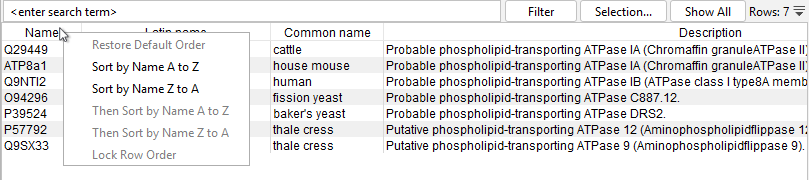
Figure 9.2: Right-clicking a column heading in a table with rows in their default order opens a menu with options to sort according to the values in that column.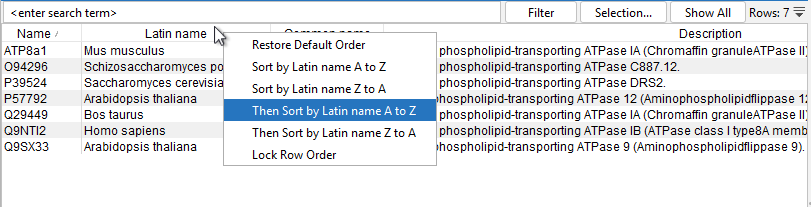
Figure 9.3: This table had already been sorted based on the contents of the Name column. The right-click menu for a different column heading includes options to restore the default order, re-sort the table based on that column's contents, or to refine the existing order based on that column's contents. An option to lock the current order is also available.
Locking and unlocking the row order
By default, if a value is updated manually in a column that has been used to for sorting, the row order would be updated immediately to take account of the new value. Immediate re-ordering can be avoided by locking the current row order before editing values in the table.
To do this, click the Lock Row Order option in the menu opened by right-clicking a column heading. This option is present and enabled when the table has been sorted, and the row order has not been locked (figure 9.2).
When the order has been locked, a lock symbol ( ) appears beside each column name and the Unlock Row Order option becomes available at the bottom of the right-click menu (figure 9.4).
When the Unlock Row Order option is chosen, the table will be immediately resorted according to the sorting rule(s) already specified, taking into account any changes that were made while the table order was locked.
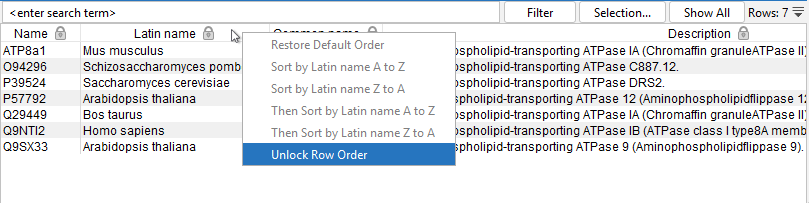
Figure 9.4: The row order in this table had been locked, as indicated by the lock symbols beside the column names. An option is available in the right-click menu of column headings to unlock the row order.