
Workbench licensing
Configuring licensing on initial startup
When an unlicensed CLC Genomics Workbench is started up, the License Assistant is opened (figure 1.4).
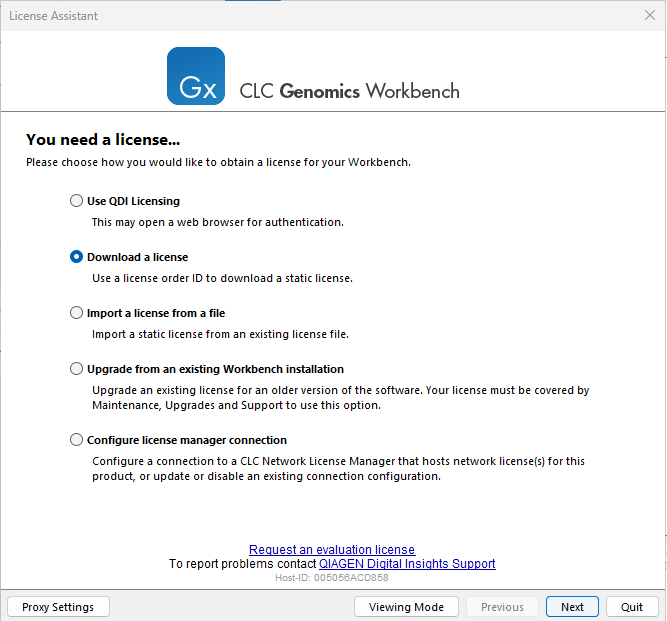
Figure 1.4: The License Assistant is opened when an unlicensed Workbench is started up.
Options available in the License Assistant are:
- Use QDI Licensing In a default CLC Genomics Workbench, choosing the option "Use QDI Licensing" in the License Assistant (figure 1.4) configures the software to use online QDI licensing. This may open a web browser for authentication.
With this licensing mechanism, a connection is established to the QDI Licensing Service to check for an available license when starting a CLC Genomics Workbench session. Further details are provided below.
- Run in Viewing Mode Select this option to run a limited version of the CLC Workbench without a license. Working in Viewing mode, data can be viewed and exported. Some import and analysis functionality is also available.
Making changes to licensing usually requires administrative privileges if the software has been installed to a central location. On Linux and Mac, this may mean logging in as an administrator before starting the software or running the software with sudo privileges. On Windows, right-click the program shortcut and choose "Run as Administrator".
Further details about licensing mechanisms is provided in the Workbench Deployment manual.
Viewing license information in a running Workbench
The License Manager provides information about the licenses in use (figure 1.5) .
Open the License Manager by going to:
Help | License Manager ( )
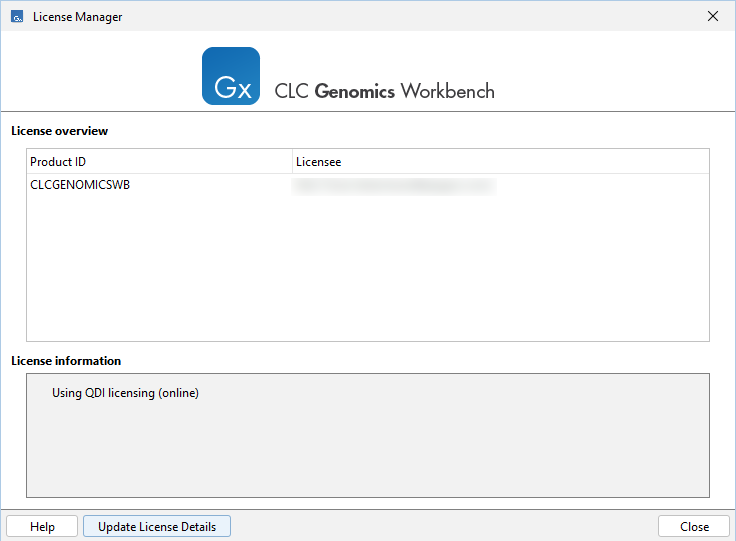
Figure 1.5: The License Manager contains information about licenses in use.
Clicking the Update License Details button opens the License Assistant dialog.
Further details about using online QDI Licensing
The first time the CLC Genomics Workbench is started up when configured to use online QDI licensing, and occasionally during future startups, you will be prompted for your QDI License user credentials in your default web browser. QDI License account credentials are provided by email when your account is created.
A connection to the QDI Licensing Service is established each time the CLC Genomics Workbench is started up to check for an available license, and a connection to the service is reestablished periodically while the Workbench is running. Access to the QDI Licensing Service addresses is thus required (*.ingenuity.com).
Note: A successful connection to the QDI Licensing Service (*.ingenuity.com) also requires that the certificate or certificate chain returned is trusted by the CLC Genomics Workbench. When they are signed by a trusted root certificate, as is usually the case, the connection to the service will succeed. However, if man-in-the-middle software, for example software for package inspection or reverse proxy, is present and the certificate or certificate chain presented is not trusted by the CLC Genomics Workbench, the connection will fail. The recommended action to address this situation is to whitelist the addresses for the QDI Licensing Service (*.ingenuity.com) and to not let the man-in-the-middle software act on whitelisted addresses.