
Table view of alignments
The Table view of an alignment ( ) contains one row per sequence in the alignment, with columns for the sequence attributes. The number of rows, i.e. the number of sequences in the alignment, is reported at the top, right side of the table. Standard table filtering can be carried out in this view.
The Table view of an alignment can be particularly useful to open in a linked view with the graphical view (figure 25.10).
This section focuses on functionality relevant specifically to working with alignments. Standard table functionality is described in Working with tables. Functionality shared with the Sequence Table view is described in Table view of sequences.
The following can be done in an Alignment Table view:
- Create a new alignment containing only selected sequences Select the rows representing the sequences of interest, and then click the Create New Alignment button at the bottom of the view (figure 25.10).
- Change the sequence order Select one or more rows in the table, keep the mouse button depressed, and drag the rows to the desired position. Note that even when non-adjacent rows are selected, all the selected rows will be moved to the new location. The order of sequences in any linked views will be updated accordingly.
- Remove sequences from the alignment Select the rows of interest, right-click and choose Delete Sequences from the menu. (figure 25.10).
- Copy sequence names Select the relevant rows, right-click and choose Copy Sequence Names from the menu. The copied names can be pasted into table filters, and into external text editing programs.
- Open an individual sequence in its own view
Clear any other selections from the table, and then right-click on the sequence of interest, and from the menu that appears:
- Choose Open This Sequence to open that sequence in a linked view. Changes that do not alter the alignment can be made in this linked view, such as adding annotations. Other linked views will be updated with the new information.
Changes that alter the alignment, such as changing or removing residues or inserting gaps, cannot be done in a linked sequence view. Such edits should be done in the graphical view of the alignment.
- Choose Open Copy of This Sequence to open a copy of that sequence. This copy is not linked to the alignment. Changes made here have no affect on the alignment.
- Choose Open This Sequence to open that sequence in a linked view. Changes that do not alter the alignment can be made in this linked view, such as adding annotations. Other linked views will be updated with the new information.
- Updating attributes for multiple sequences
Attributes for multiple sequences can be updated in two ways from this view:
- Add or edit attributes using a right-click menu option. Select the rows of interest and then right-click to open a menu with options to add or edit attributes. Note: When an attribute for multiple sequences is edited this way, the same value for the new/edited attribute is applied to all the selected sequences.
- Click the Add Attributes button at the bottom of the view to add attributes to the sequences in this alignment using the Update Sequence Attributes tool.
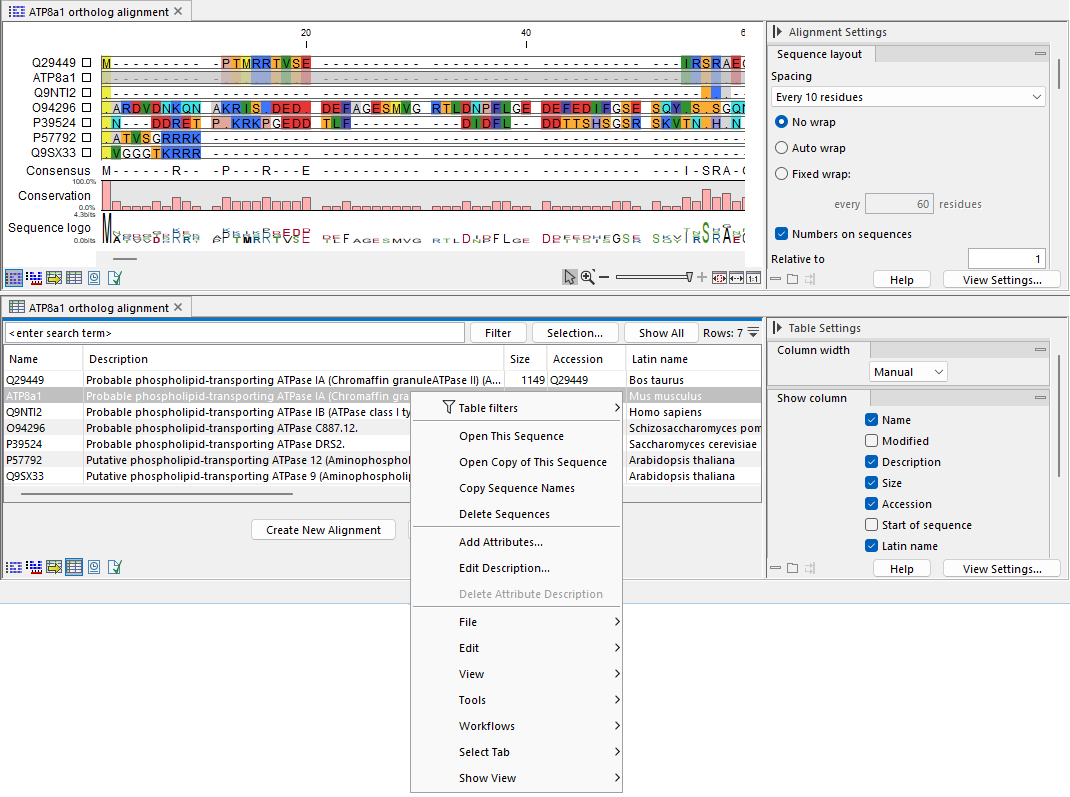
Figure 25.10: An alignment Table view (bottom) opened in a linked view with the graphical view (top). At the top right of the Table view, the number of rows, i.e. the number of sequences in the alignment, is reported. Right-clicking a sequence in the table opens a context menu that includes options relevant to the selected sequence, and for editing the attribute that was clicked on. As the views are linked, the sequence selected in the Table view is correspondingly selected in the graphical view.