
Use QDI Licensing
Choose the "Use QDI Licensing" option in the License Assistant (figure 1.5) to connect to the QDI Licensing Service to check for an available license when starting a CLC Genomics Workbench session.
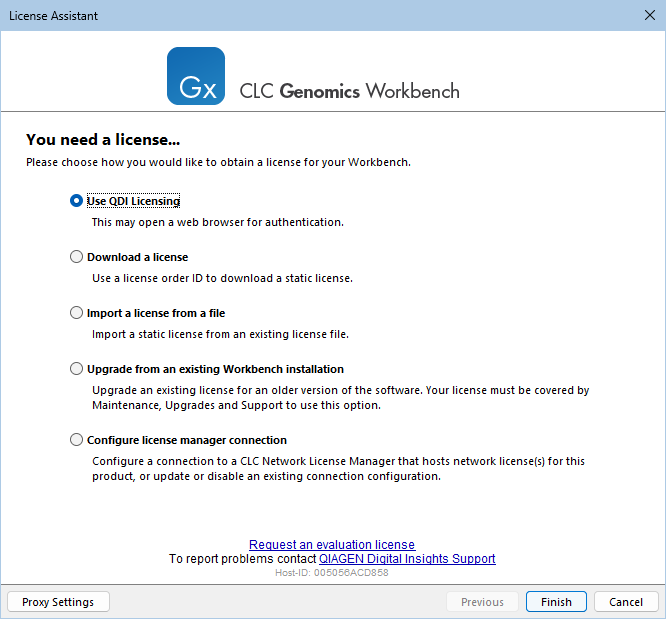
Figure 1.5: "Use QDI Licensing" has been selected in the License Assistant.
The first time the Workbench is started up after selecting this option, and occasionally during future startups, you will be prompted for your QDI License user credentials in your default web browser. QDI License account credentials are provided by email when your account is created.
With this option selected, a connection to the QDI Licensing Service is established each time the CLC Genomics Workbench is started up to check for an available license, and a connection to the service is reestablished periodically while the Workbench is running. Access to the QDI Licensing Service addresses is thus required (*.ingenuity.com).
Note: A successful connection to the QDI Licensing Service (*.ingenuity.com) also requires that the certificate or certificate chain returned is trusted by the CLC Genomics Workbench. When they are signed by a trusted root certificate, as is usually the case, the connection to the service will succeed. However, if man-in-the-middle software, for example software for package inspection or reverse proxy, is present and the certificate or certificate chain presented is not trusted by the CLC Genomics Workbench, the connection will fail. The recommended action to address this situation is to whitelist the addresses for the QDI Licensing Service (*.ingenuity.com) and to not let the man-in-the-middle software act on whitelisted addresses.