
Emptying and restoring data from recycle bins
Emptying a recycle bin permanently deletes data. This action cannot be undone.
Recycle bins via the web client
A user logged into the web client can see their own recycle bins listed at the bottom of each expanded File System Location in the web client Navigation Area. Members of the admin group see all recycle bins for each File System Location (figure 18.2).
Select a recycle bin or elements in a recycle bin to see information about the selection under:
Element info ( ) | Info ()
Under this area:
- After selecting a File System Location in the Navigation Area, admins can empty all recycle bins in that location (figure 18.2).
- After selecting an individual recycle bin, it can be emptied, or all items in it can be restored (figure 18.3).
- After selecting an individual item in a recycle bin, it can be deleted or restored (figure 18.4).
Emptying recycle bins can be restricted to just users of the admin group.
The listing of recycle bins in a given location can be refreshed at any time by going to the Navigation Area, closing the folder containing those recycle bins, and then opening that folder again.
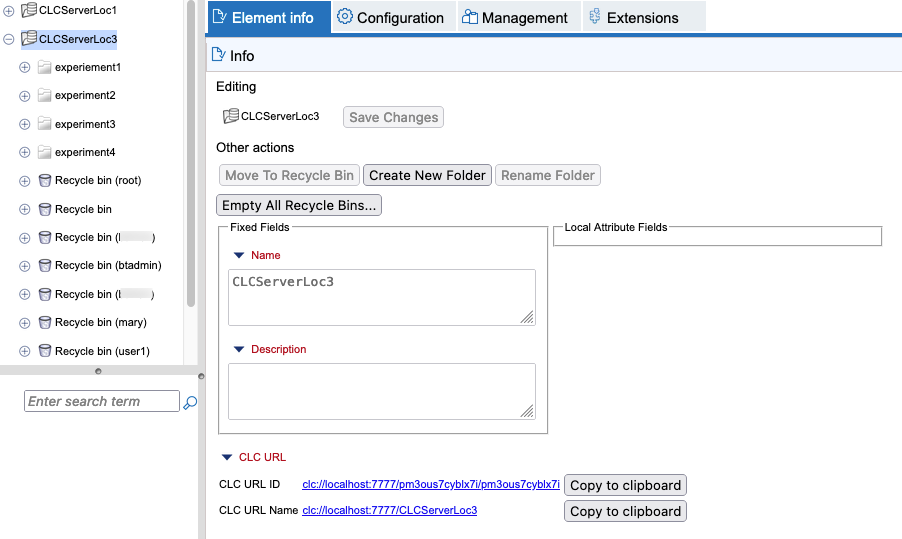
Figure 18.2: An administrator has expanded the CLCServerLoc3 location in the Navigation Area. All the recycle bins in that location are visible. The Empty All Recycle Bins... button is available for emptying all the recycle bins in a single action.
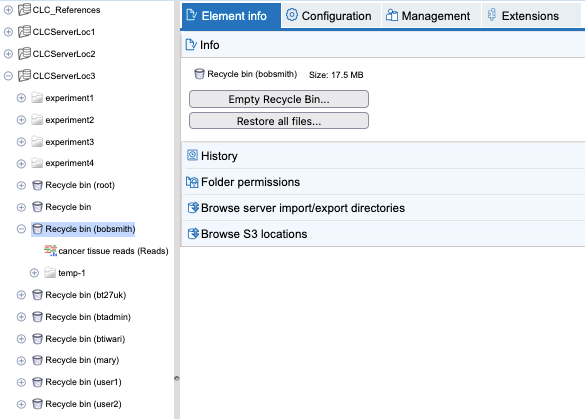
Figure 18.3: A recycle bin is selected in the Navigation Area. It can be emptied or the data in it can be restored.
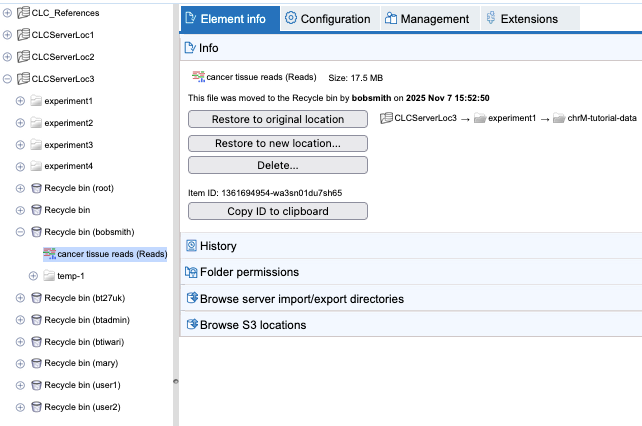
Figure 18.4: An item in a recycle bin has been selected. It can be deleted or restored.
Recycle bins via CLC Workbenches
A user logged into the CLC Server from a CLC Workbench can see their own recycle bins listed at the bottom of each File System Location in the Workbench Navigation Area.
By default members of the admin group also see just their own recycle bins (figure 18.5), but all recycle bins for a location can be displayed, or emptied, by right-clicking the location in the Navigation Area, and then selecting from the menu:
Location | Show All Recycle Bins
or
Location | Empty All Recycle Bins
To empty a specific recycle bin, right-click it and select Empty Recycle Bin from the menu.
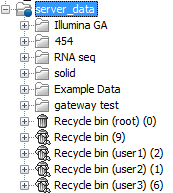
Figure 18.5: An admin is logged into the CLC Server from a Workbench and has chosen to show all the recycle bins in a File System Location.
Recycle bins via CLC Server Command Line tools
Emptying recycle bins and restoring data from them can only be done by members of the admin group when using the CLC Server Command Line Tools.
See the CLC Server Command Line Tools manual for further information.