
Reference data in server workflows
When making an installer for a workflow that is configured to use reference data, options are presented for how each specified reference data element should be handled. The impact of the choices Bundle and Reference when installing a workflow on the CLC Server is described in this section.
Bundled reference data
Data elements for which the Bundle option was chosen when creating the workflow installer are included in the installer.
When the workflow is installed, those data elements data are saved to a folder called Plugin_data in the first CLC File System Location that the user installing the workflow has write permission to. If a Plugin_data folder does not already exist at the top level of that CLC File System Location, it is created. A subfolder is created under the Plugin_data folder to store the bundled reference data. The subfolder name contains the name and version of the workflow.
"Reference" reference data
Data for which the Reference option was chosen when creating the workflow installer is checked for in the server's CLC_References File System Location, with following possible results:
- The data elements are present in the CLC_References File System Location.
- If there are no other problems with the workflow, the workflow will have a green checkmark (
 ) in the Status column.
- The data elements are not all present in the CLC_References File System Location
- The Status column will contain a (
 ). Clicking it opens a "Workflow status" dialog with information about the problem, and the possibility of resolving it by clicking the Download Reference Data... button (figure 10.2).
That action opens a "Download reference data" dialog with additional information (figure 10.10). If the Download Reference Data button in that dialog is clicked, there are two possible situations:
- There is a CLC_References File System Location.
- The relevant data elements will be downloaded and saved to this location.
- There is no CLC_References File System Location.
- A CLC_References File System Location will be established before the data is downloaded, according to the following rules:
- If a CLC_References folder exists on the file system under the same folder as the first CLC File System Location configured on the CLC Server, then that CLC_References folder is added as a CLC File System Location, and the reference data is then saved there.
Otherwise,
- A CLC_References folder is created on the file system under the same folder as the first CLC File System Location configured on the CLC Server, and then added as a CLC File System Location. The reference data is then saved to that location.
To see how the CLC_References File System Location has been configured, go to: Configuration (
 ) | Main configuration (
 ) | File system locations
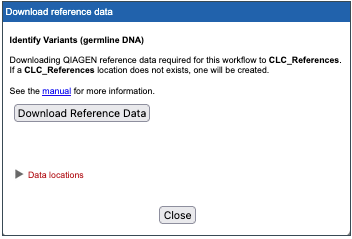
Figure 10.10: If proceeding to download reference data, a CLC_References location will be created if it does not already exist. - If a CLC_References folder exists on the file system under the same folder as the first CLC File System Location configured on the CLC Server, then that CLC_References folder is added as a CLC File System Location, and the reference data is then saved there.
Note: A CLC_References File System Location must already exist for a Workbench user to be presented with an option to download reference data when launching a workflow. It is not possible to cause the creation of, or configure, a CLC Server File System Location from a Workbench client.