
Built-in authentication
Using built-in authentication, user and group management can be carried out via the web client or using a CLC Workbench. All user information is stored in the CLC Server and is not accessible from other systems.
A single user can be a member of multiple groups. When group level permissions are enabled for a CLC Data Location, a user must be a member of at least one group that has permission to access data in that location.
The admin group is the only predefined group. The CLC Server root user is part of that group. Users who should have full administrative rights for the CLC Server should be added to this group.
Managing users and groups via the web client
Log into the web client as an administrative user and navigate to:
Configuration ( ) | Users and groups (
 )
)
To create or remove users, or change a password, expand the Manage user accounts heading in this section (figure 5.5).
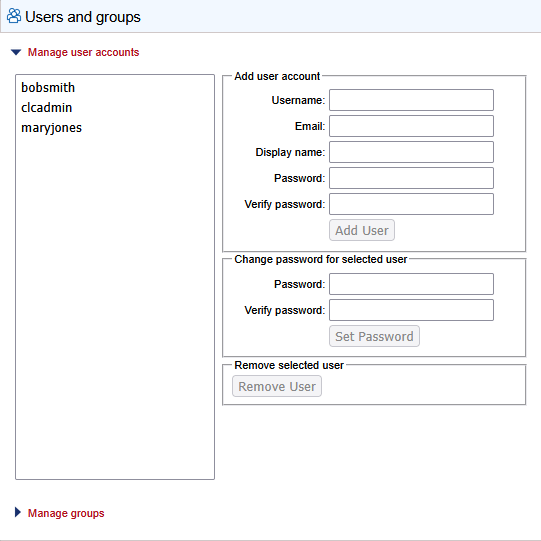
Figure 5.5: Managing users using built-in authentication.
To create or remove groups or change group membership, expand the Manage groups heading (figure 5.6).
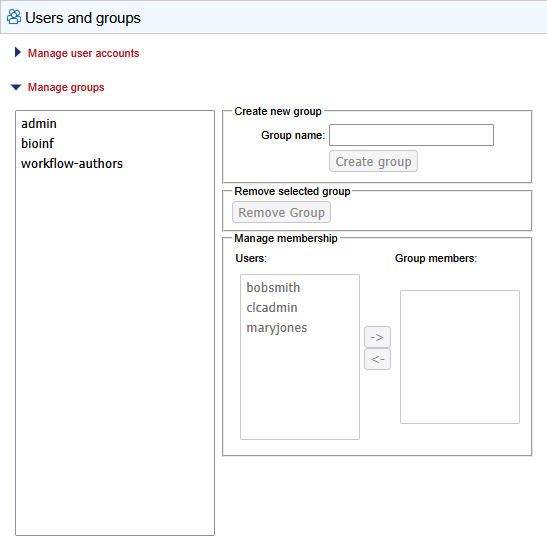
Figure 5.6: Managing groups using built-in authentication.
Managing users and groups via the Workbench
This section is relevant only when using built-in authentication. When LDAP or AD is being used, the menus described here are disabled.
Log into the CLC Server from the Workbench as an administrative user and then go to the Workbench menu:
File | Manage Server Users and Groups
See figure 5.7.
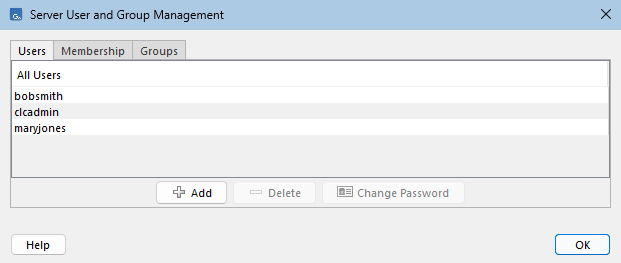
Figure 5.7: Managing CLC Server users via a CLC Workbench when using built-in authentication.
Click on the Add ( ) button to create a new user. Enter the name of the user and enter a password. You will be asked to re-type the password. If you wish to change the password at a later time, select the user in the list and click Change password (
 ).
).
To delete a user, select the user in the list and click Delete ( ).
).
Adding and removing groups is done in the Groups tab (see figure 5.8).
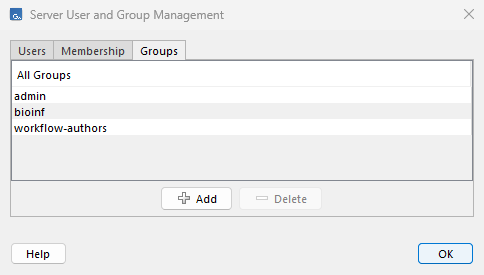
Figure 5.8: Managing CLC Server groups via a CLC Workbench when using built-in authentication.
To create a new group, click the Add () button and enter the name of the group. To delete a group, select the group in the list and click the Delete () button.
When a new group is created, it is empty. To assign users to a group, click on the Membership tab (figure 5.9). In the Selected group box, you can choose among all the groups that have been created. When you select a group, you will see its members in the list below. To the left you see a list of all users.
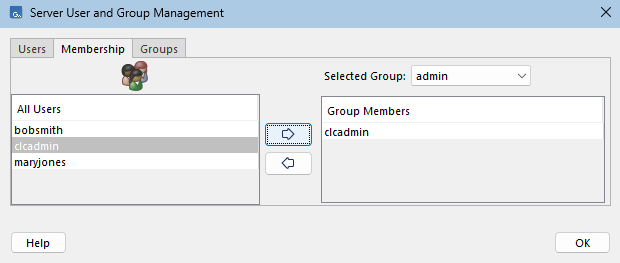
Figure 5.9: Listing members of a group via a CLC Workbench
To add users to or to remove users from a group, click on the Add ( ) or Remove (
 ) buttons.