
Configuring and using license files
Use of QDI license files is available by agreement only. To inquire about using license files instead of online licensing, please contact our Sales team by emailing bioinformaticssales@qiagen.com.
All licensing configuration is done in the CLC Server web client of the single server or master node, under:
Management ( ) | Licensing (
 )
The license file is downloaded by the license administrator using the QIAGEN Digital Insights Admin Tool (QDIAT).
Details:
- In the CLC Server web client, copy the Host ID for the system by expanding the License files section and clicking the Copy Host ID button (figure 2.14).
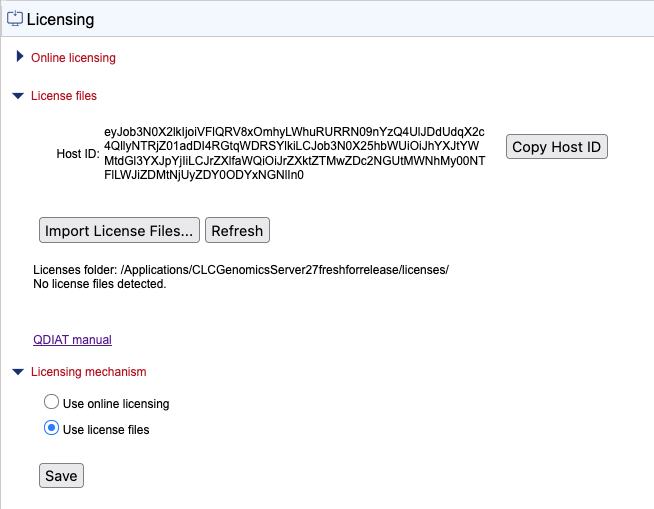
Figure 2.15: The Host ID is displayed in the "License files" area, and can by copied using the Copy Host ID button. A license file is imported by clicking the Import License Files... button. Here, the "Use license files" option has been selected under Licensing mechanism. - Log into the QDI Admin Tool (QDIAT) and download a license file.
In QDIAT, a license that can be downloaded as a file will contain "OFFLINE" in the License Type field (figure 2.15).
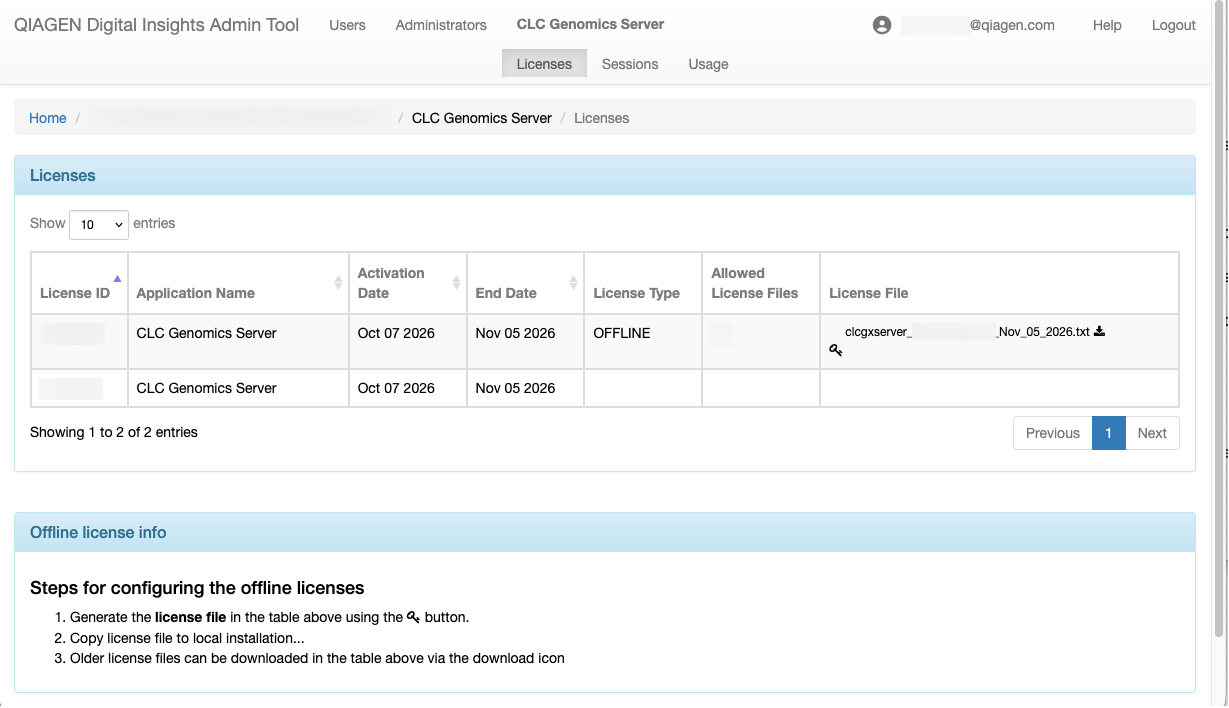
Figure 2.16: The license that can be downloaded as a file has "OFFLINE" in the License Type field. A license file has already been generated for this license, and can be downloaded by clicking the download icon beside the filename in the table. General instructions are shown at the bottom of the page.See the QDIAT manual for further details about that system.
- Back in the CLC Server web client, click the Import License Files... button in the License files section to import the license file (figure 2.14).
- Select Use license files under the Licensing mechanism section (figure 2.14) and save the change of licensing mechanism by clicking the Save button.
- Restart the CLC Server.
The option to restart the CLC Server is presented whenever changes to the licensing configuration are made. Changes are not applied until the server is restarted.
After the CLC Server has been restarted, information about the license will be displayed in the License files area (figure 2.16).
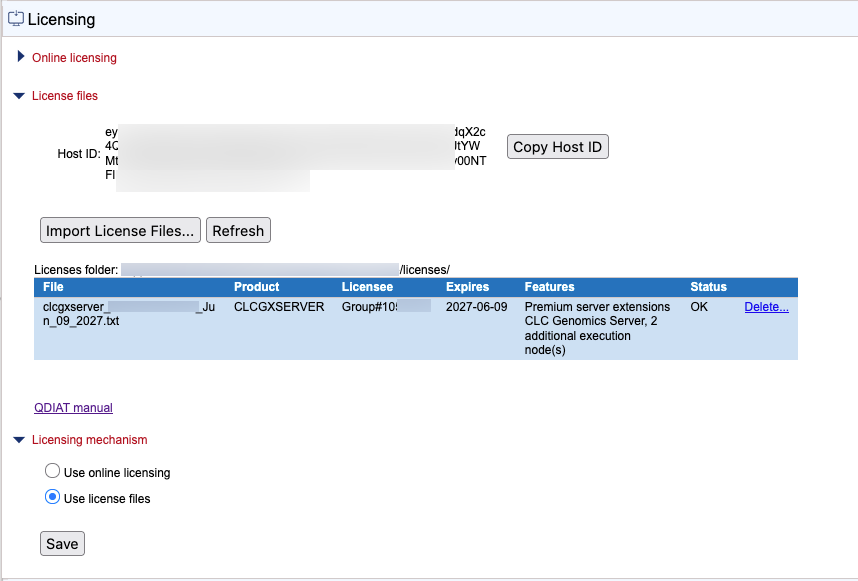
Figure 2.14: Information about the license is shown in the License files area. This includes the features supported and the expiry date. An option to delete the file is also available.
Notes:
- Imported license files are placed in the
licensesfolder in the installation of the single server or master node installation area. - When a new license file is imported, we recommend any older file in the
licensesfolder be deleted. Files can be using the Delete... option in the table under the License files area (figure 2.16).