
Upgrade license
The option Upgrade from an existing Workbench installation is convenient when an earlier version of the CLC Main Workbench is installed on the same system and it used a static license file. Using this option, an attempt is made to use information in the static license file from the earlier installation to download an updated license file. To use this functionality, the license must be covered for Maintenance, Upgrades and Support (MUS) and the Workbench needs direct access to the external network.
If the Workbench cannot connect to the external network directly, please see Download a license on a non-networked machine.
If your license is covered for Maintenance, Upgrades and Support (MUS), but you experience problems downloading a license for the new version of the software, please contact bioinformaticslicense@qiagen.com.
After selecting the Upgrade from an existing Workbench installation and proceeding, the Workbench searches for an earlier software version. When one is found, information like that in figure 1.11 is displayed. If this is the relevant license file, click Next. The Workbench then contacts QIAGEN Aarhus servers to check whether the license can be upgraded. If it can, a message similar to that in figure 1.12 is displayed. If there is a problem updating the selected license, a dialog will appear indicating this.
If the earlier installation could not be found or the license file identified is not the right one, click on the button for choosing a different license file and find the intended license file. It will be in a subfolder called "licenses" within the installation area of the Workbench you are upgrading from. Select the license file and click on the "Open" button.
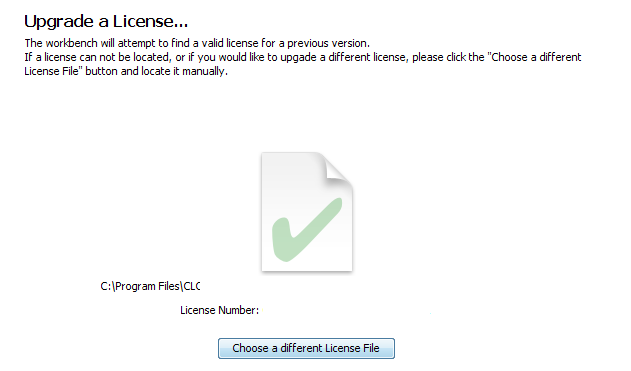
Figure 1.11: An license from an older installation was found.
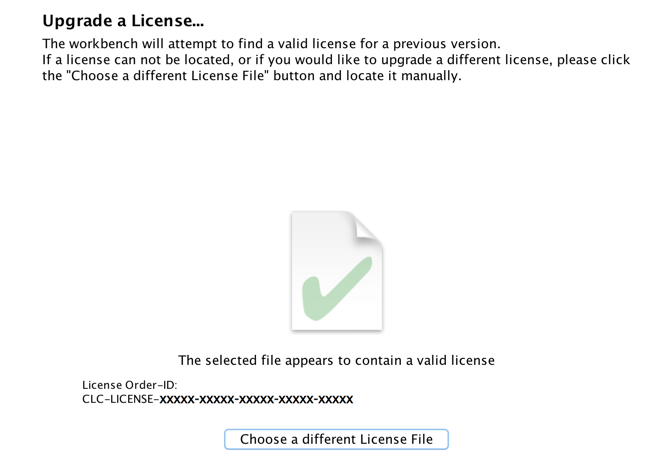
Figure 1.12: The license is valid, so a license file can be downloaded for the version of the Workbench being installed.
Click Next to choose how to get the updated license file. The options available are described below.
In this dialog, there are two options, Direct Download and Go to CLC License Download web page.
Direct download
Choosing this option connects to QIAGEN Aarhus servers to download a static license file and install it for use with the CLC Workbench currently being used. (Requires access to the external network.)
After choosing the Direct Download option and clicking on the button labeled Next, a dialog similar to that shown in figure 1.13 will appear if the license is successfully downloaded and installed.
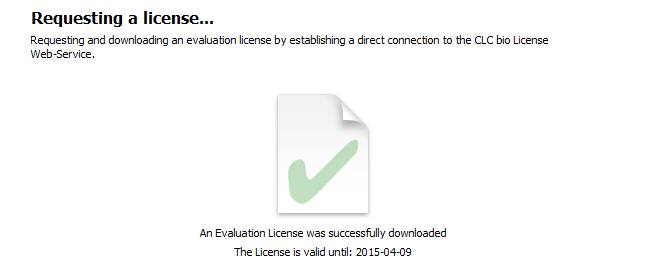
Figure 1.13: A license has been successfully downloaded and installed for use.
When the license has been downloaded and installed, the Next button will be enabled.
If there is a problem, a dialog will appear indicating this.
Go to license download web page
Choosing this option opens the online license download form in a web browser.
After choosing this option and clicking on Next, the license download form will be opened in a web browser (figure 1.14).
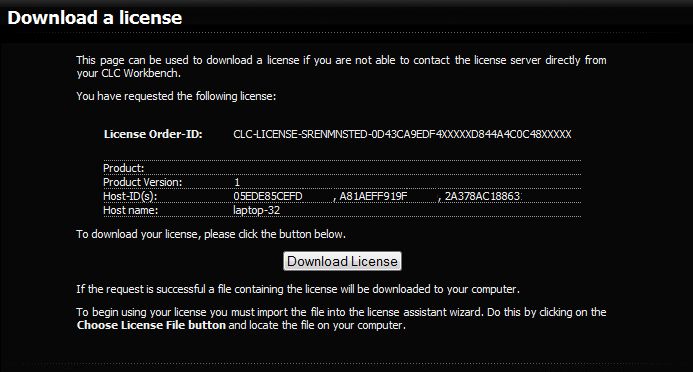
Figure 1.14: The license download form opened in a web browser.
Click on the Download License button in the web form and save the license file.
The License Assistant in the CLC Workbench will show the option to import a license from a file (figure 1.15).
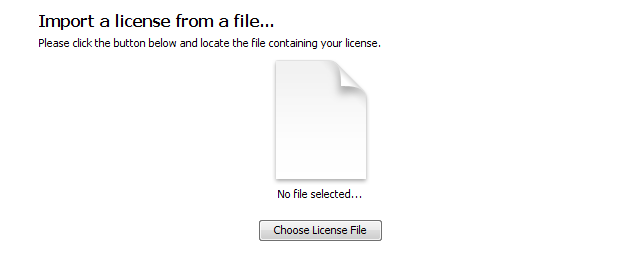
Figure 1.15: Importing the license file downloaded from the web page.
Click on Choose License File, find the saved license file and select it. Then click on Next.
Subsections