
Save changes in a view
When a new view is created, an * in front of the name of the view in the tab indicates that the element has not been saved yet. Similarly, when changes to an element are made in a view, an * is added before the element name on the tab and the element name is shown in bold and italic in the Navigation Area (figure 2.6).
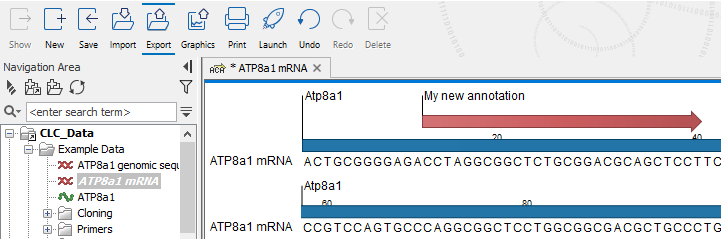
Figure 2.6: The ATP8a1 mRNA element has been edited, but the changes are not saved yet. This is indicated by an * on the tab name in the View Area, and by the use of bold, italic font for the element's name in the Navigation Area.
To save changes to an element open in a view, select the relevant tab in the viewing area and do one of the following:
- Right-click on the tab and choose the Save (
 ) option.
- Use the keyboard shortcut Ctrl + S (
 + S on Mac)
- Choose the Save () option under the top level File menu.
- Close the tab. If there are unsaved changes, you will be asked if you want to save them.
If an element has not previously been saved, the above actions will bring up a "Save As" dialog (figure 2.7) where the location to save to and the name for the element are prompted for.
Saving an open element that has not previously been saved can also be achieved by dragging its tab to the place in the Navigation Area it should be saved to.
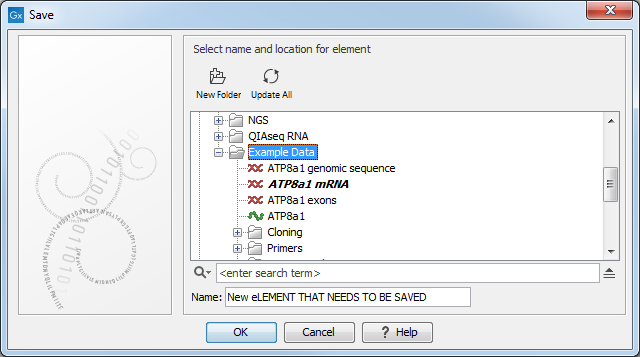
Figure 2.7: Save As dialog. The new element has been named "newsequence123" and will be saved in the "Example Data" folder.
To save a copy of a previously saved element, whether or not changes have been made since it was last saved, select the relevant tab in the viewing area and do one of the following:
- Right-click on the tab and choose the Save As... () option.
- Use the keyboard shortcut Ctrl + Shift + S (
+ Shift + S on Mac)
- Choose the Save As... () option under the top level File menu.
- Drag the tab of the element to the place in the Navigation Area where the copy should be saved to.
Note: All elements in a folder must have unique names. If an element of the same name already exists in the folder being saved to, a new name will be assigned to the element being saved. The new name will consist of the old name appended with a numeric extension such as "-1", "-2", or higher if needed, for it to be unique.
See Copying and moving elements and folders for further details about saving copies of data and folders, including information about behavior when copying or moving elements between Data Locations.