
Public S3 buckets
To configure access to a public AWS S3 bucket, go to:
Connections | Public S3 Buckets ( )
)
Click on the Add Public S3 Bucket button and enter the bucket name (figure 3.3).
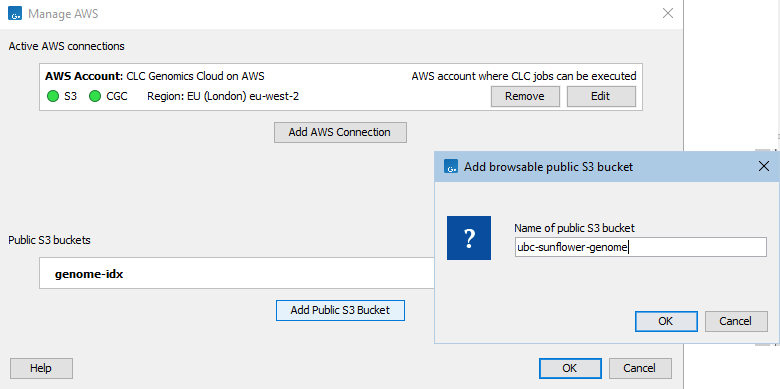
Figure 3.3: Configuring access via the Workbench requires only the name of the public AWS S3 bucket. Those already added are listed in the Public S3 buckets dialog.
The contents of the public S3 bucket can then be browsed under the Remote Files tab next to the Navigation Area tab, in the top left side of the Workbench (figure 3.4). Public buckets will also be listed as a potential source of input data in launch wizards of relevant import tools and workflows when using on-the-fly import.
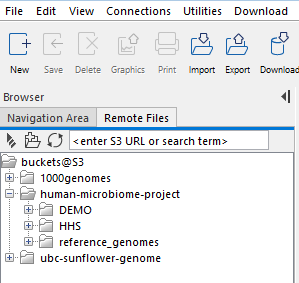
Figure 3.4: Public buckets can be browsed under the Remote Files tab, next to the Navigation Area.
Note: When workflows are run locally on a CLC Workbench or CLC Server using data stored in AWS S3 as input (on-the-fly import), that data is first downloaded to a temporary folder and is then subsequently imported. The data download adds to the time the analysis takes, and potentially also to the cost, as AWS charges for downloading data from S3.
All traffic to and from AWS is encrypted using a minimum of TLS version 1.2.