
Configuring access to AWS in the Workbench
Configuring and managing AWS Connections
To configure an AWS Connection or manage existing connections, go to:
Connections | AWS Connections ( )
)
This opens the Manage AWS Connections dialog (figure 3.1). Existing AWS Connections and their status will be listed. These can be edited or removed. Clicking on the Add AWS Connection button allows a new connection to be configured, as described below.
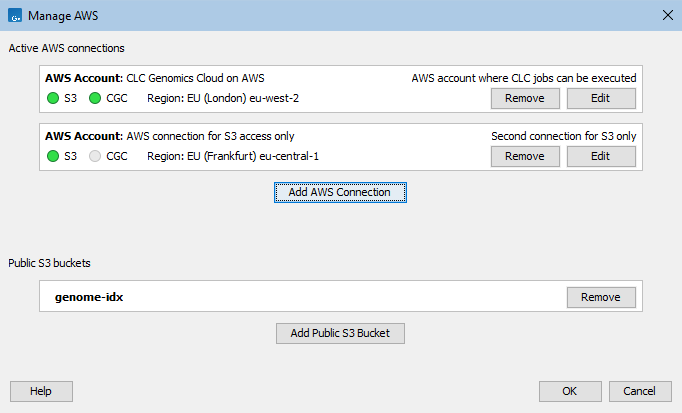
Figure 3.1: The Manage AWS Connections dialog
Configuring an AWS Connection
To configure a new AWS Connection, click on the Add AWS Connection button in the Manage AWS Connections dialog and enter the relevant details for the AWS Connection (figure 3.2). These are:
- Connection name: A short name of your choice, identifying the AWS account. This name will be shown as the name of the data location when importing data to or exporting data from Amazon S3.
- Description: A description of the AWS account (optional).
- AWS access key ID: The access key ID for programmatic access for your AWS IAM user.
- AWS secret access key: The secret access key for programmatic access for your AWS IAM user.
- AWS region: An AWS region. Select from the drop-down list.
- AWS partition: The AWS partition for your account.
The dialog continuously validates the settings entered. When they are valid, the Status box will contain the text "Valid" and a green icon will be shown. Click on OK to save the settings.
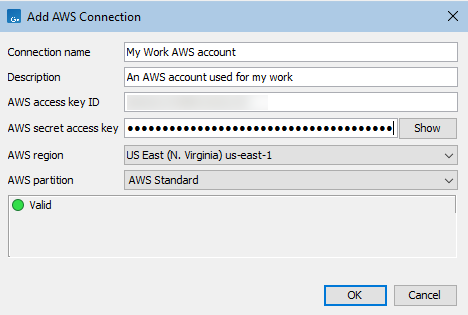
Figure 3.2: Configuration of an AWS Connection in a CLC Workbench
AWS connection status is indicated using colors. Green indicates the connection is valid and ready for use. Connections to a CLC Genomics Cloud are indicated in the CGC column (figure 3.1). To submit analyses to the CLC Genomics Cloud, the CLC Cloud Module must be installed and a license for that module must be available.
AWS credentials entered are stored, obfuscated, in Workbench user configuration files.
Note: Multiple AWS Connections using credentials for the same AWS account cannot be configured.
Configuring access to public S3 buckets is described in Public S3 buckets.
Subsections