
QIAGEN Sets
Reference data supplied by QIAGEN that is primarily intended for use with workflows can be downloaded and managed under the QIAGEN Sets tab of the Reference Data Manager. This is the focus of this section of the manual.
The same data can also be downloaded when launching workflows configured to make use of Reference Data Sets or, for QIAseq analyses, using functionality provided in the QIASeq Panel Analysis Assistant .
Note: Functionality for deleting this reference data is available only in the Reference Data Manager.
Using any of these methods, the data is downloaded to a CLC_References location and can be browsed via the Navigation Area. When the "Manage Reference Data" option at the top of the Reference Data Manager is set to "Locally", data is downloaded to the CLC_References location in the CLC Workbench. When set to "On Server", the data is downloaded to the CLC_References location in the CLC Server. Only members of an admin group can delete data in the CLC Server location.
Managing QIAGEN references in the Reference Data Manager
Open the Reference Data Manager (RDM) by clicking the Manage Reference Data ( ) button in the top Toolbar or go to the Utilities menu and select Manage Reference Data.
Click the QIAGEN Sets tab. The left-hand listing is organized into tabs, with separate tabs for Reference Data Sets and Reference Data Elements. Reference Data Sets are groups of compatible reference data, where some or all members of the set can be used as reference data for a particular analysis. For example, the hg38 genome along with corresponding annotation tracks and variant tracks. A data element can be a member of more than one set.
In the left-hand list of Reference Data Sets, the number in a circle to the left of their names indicates the number of elements in that set already available in the CLC_References location (figure 2.2). In the list of Reference Data Elements, a checkmark to the left of its name indicates that element is available in the CLC_References location (figure 2.4).
Individual elements or all elements in a set can be downloaded using functionality in the Reference Data Manager. To easily download just the reference data required for a given analysis, consider downloading when launching a workflow or for QIASeq analyses, using the functionality provided by the QIASeq Panel Analysis Assistant.
When a Reference Data Set is selected, summary information about each element in that set is listed in the right-hand pane (figure 2.2):
- Role The role that element has in the set. Roles are used for matching up individual data elements with relevant inputs when a workflow is run. For further details, see Reference Data Sets and defining Custom Sets.
- Element version A concatenation of the data element's name and version. Clicking on this entry selects the data element under the Reference Data Elements tab, where further details are presented (figure 2.4).
- Downloaded Elements already downloaded to the CLC_References location have a downloaded icon (
 ) in this column.
- Download Size The size of the file before download.
- On Disk Size The size of the data element after download and import.
Also in the right-hand pane are buttons for actions that can be taken:
- Download Set Click this to trigger the download of all elements in a set.
During download, a progress bar is displayed, with buttons to Cancel, Pause or Resume the download available to the right of it (figure 2.3).
- Delete Set Click this to delete all elements in the set. Taking this action may affect other sets as some elements are used in multiple sets. This button is enabled only if you have permission to delete data in the CLC_References location.
- Create Custom Sets Click this to create a custom set. For details, see Reference Data Sets and defining Custom Sets.
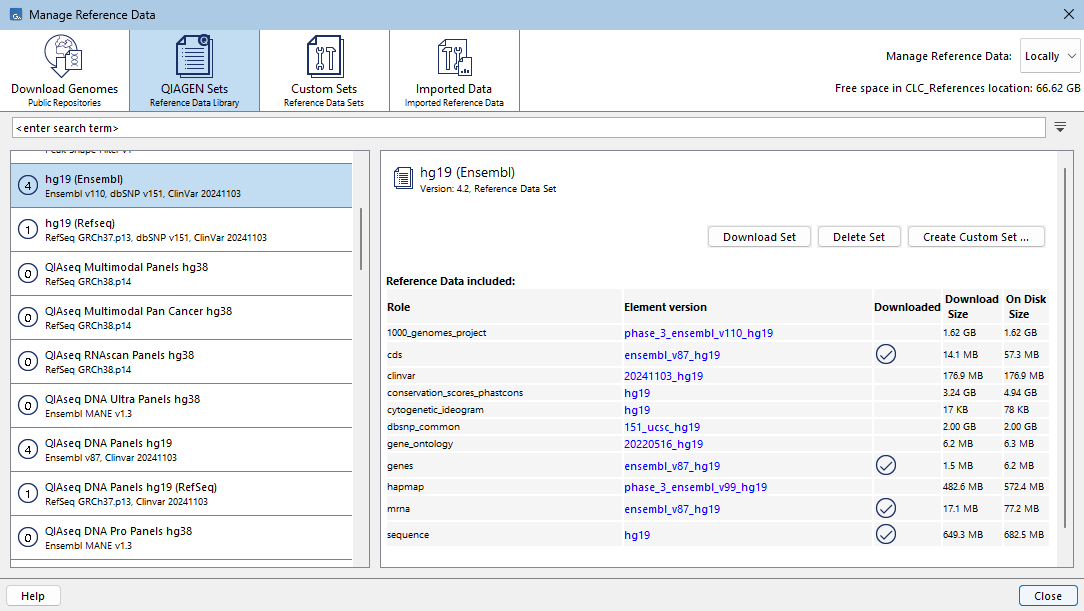
Figure 2.2: Information about a Reference Data Set is provided in the right-hand pane of the Reference Data Manager. Buttons for downloading all elements in a set, deleting all elements in the set or for using this set as the basis of a custom set are above the element information.
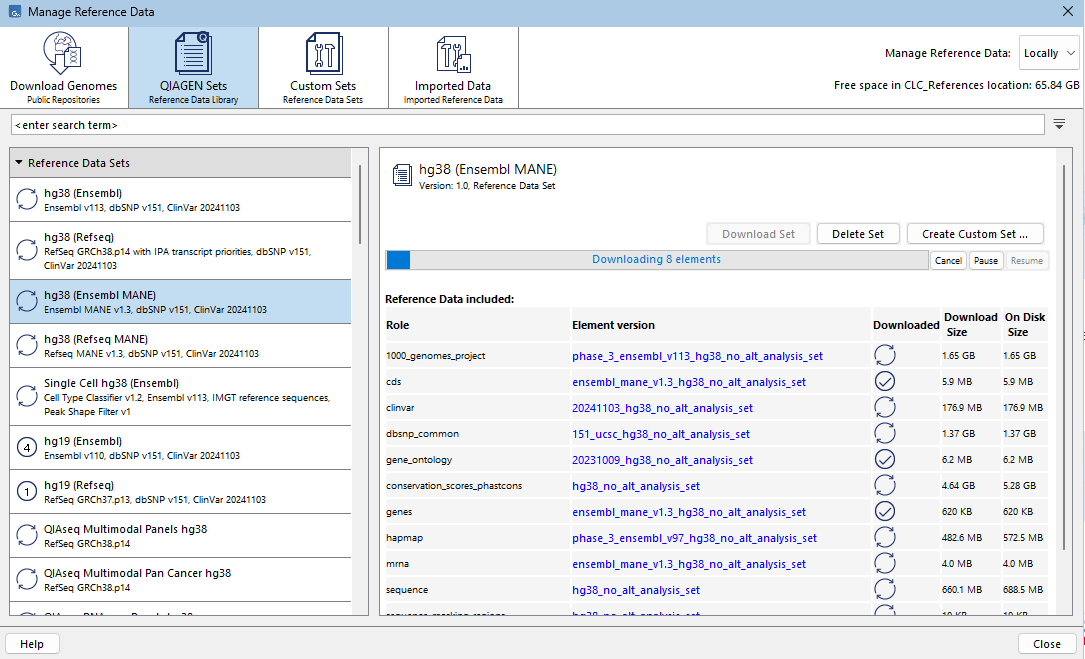
Figure 2.3: Eight elements of this set are being downloaded. Icons in the Downloaded column indicate whether the element is already in the CLC_References location or whether it is still being downloaded. Buttons for canceling, pausing, or resuming a download are available on the right-hand side of the download progress bar.
The buttons available in the right-hand pane for individual data elements are:
- Download Click this to trigger the download of the element. This is disabled if the element is already present in the CLC_References location in figure 2.4.
- Delete Click this to delete the element. Taking this action may affect multiple sets. This button is enabled only if you have permission to delete data in the CLC_References location.
- Show in Navigation Area Click this to select the element in the Navigation Area.

Figure 2.4: Detailed information about a reference data element can be viewed by selecting it in Reference Data Element list directly or by clicking the element version link in the Reference Data Set information. A checkmark in the left-hand list indicates that this element is available in the CLC_References location.
When logged into a CLC Server with a CLC_References location, buttons for copying data from the Workbench to the Server references location, or vice versa, are available in the right-hand pane of sets and elements. For further details about this functionality, see Storing, managing and moving reference data.
Searching for data available under the QIAGEN Sets tab
Use the search field under the top toolbar to search for elements and sets. Terms are searched for in element and set names, role names, and versions. To search for just an exact term, put the term in quotes.
The results include the name of the element or set the term was found in, followed in brackets by the left-hand tab it is listed under, e.g. (Reference Data Elements). Hover the cursor over a hit to see what aspect of the result matched the search term (figure 2.5). Double-click on a search result to open it.
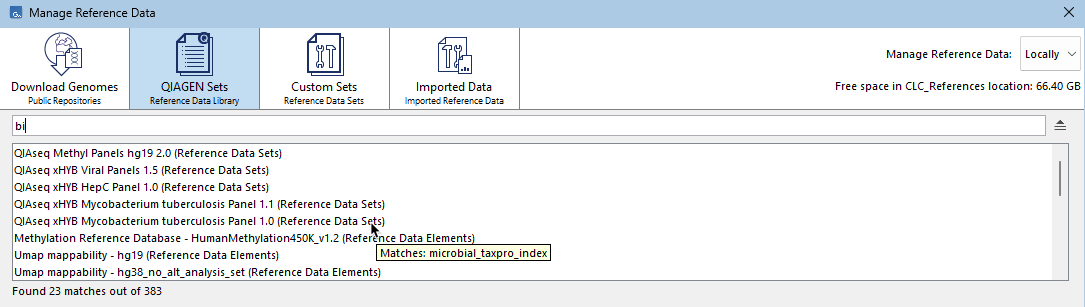
Figure 2.5: Terms entered in the search field are searched for in element and set names, role names, and versions. Hovering the cursor over a hit reveals a tooltip with information about the match.
Additional information
The HapMap (https://www.sanger.ac.uk/data/hapmap-3/) databases contain more than one file. QIAGEN Reference Data Sets that include HapMap are initially configured with all the populations available. You can specify specific populations to use when launching a workflow, or you can create a custom reference set that contains only the populations of interest.
General information about Reference Data Sets, and creating Custom Sets, can be found at https://resources.qiagenbioinformatics.com/manuals/clcgenomicsworkbench/current/index.php?manual=Reference_Data_Sets_defining_Custom_Sets.html.
General information about the Reference Data Manager is at https://resources.qiagenbioinformatics.com/manuals/clcgenomicsworkbench/current/index.php?manual=References_management.html.