
Split by Cell
Split by Cell splits the input element according to groupings provided by Cell Clusters ( ) or Cell Annotations (
 ). It is available from:
Tools | Single Cell Analysis ( ) | Utility Tools (
 ) | Split by Cell (
 )
)
To see a list of element types that can be used as input, click on the ( ) icon in the top right corner of the input selection wizard (figure 18.4).
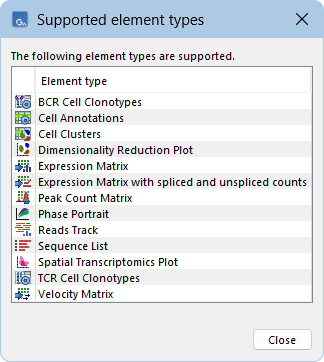
Figure 18.4: Clicking on the info icon at the top right corner of the input selection wizard opens a window showing a list of element types that can be used as inputs.
The options control the groups of cells for which an output is produced:
- Clusters and Cell annotations. Clusters accepts Cell Clusters () and Cell annotations accepts Cell Annotations ().
- Group by. One or more categories from the supplied Cell Clusters or Cell Annotations. If neither is supplied, then it is only possible to group by `Sample'. Categories that only contain non-integer numerical data are not supported.
If Cell Clusters contained a category `Cell type' with values `T cell', `B cell' and `Platelet', and Cell Annotations contained a category `Status' with values `Case' and `Control', then selecting Group by = Cell type, Status would give groups `T cell - Case', `T cell - Control', `B cell - Case', `B cell - Control', `Platelet - Case', and `Platelet - Control'.
Select groups (Optional). This can be supplied to reduce the number of groups to only those of interest. If left empty, all groups will be output.
The tool outputs one element for each group, of the same type as the input element, even when the output element is empty. It can also optionally output a Report ( ) summarizing the number of cells per group.
Create subset
Split by Cell can effectively be used to create a subset of the input by specifying a single group defining the subset in the Select groups option.
To create subsets using features rather than cells, use Filter Based on Name.
Alternatively, subsets can be created directly from low-dimensional plots, using Create Subset available in the right-click menu.
Performing standard analysis on cell groups
Split by Cell can be used to adapt standard bulk-data analyses by splitting the read mapping ( ) output from Single Cell RNA-Seq Analysis, and optionally the corresponding sequence list (
 ). This allows analyses such as variant detection or fusion detection to be performed for each group, enabling the exploration of cell group-specific patterns using standard bulk analyses.