
Browse AWS S3 locations
The contents of AWS S3 buckets you have access to can be browsed by going to:
Element info ( ) | Browse S3 locations (
 ).
).
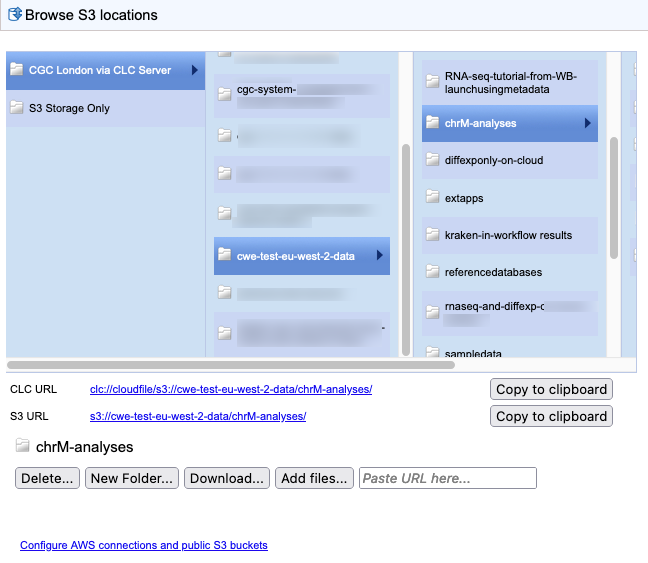
Figure 8.8: A folder in an S3 bucket has been selected while browsing S3 locations in the web client. URLs for the selected folder are provided under the browser. Here, an admin user is logged into the CLC Server, so the CGC system bucket is also listed. Data can be uploaded, downloaded, deleted and new folders created using functionality at the bottom of this area.
When an item in an S3 bucket is selected, URLs for that item are shown and buttons for relevant functionality are enabled (figure 8.8). These URLs can be copied using the Copy to clipboard button and can be useful for sharing the location of files with others. CLC URLs are also useful when copying data to server import/export directories and when specifying inputs and locations to save to using the CLC Server Command Line Tools. When a Web URL is entered into the address bar of a web browser, the web client opens with the relevant item under the "Browse S3 locations" tab.
The actions available in this area are:
- Delete files or folders If a folder has been selected, clicking on the Delete... button opens a dialog offering the option to delete the folder and its contents, or to specify individual files from that folder to be deleted. You are asked for confirmation of your intention to proceed with deletion.
- Add a new folder Click on the New Folder... button to create a new folder within the folder selected in the browsing area.
- Download files or folders Data can be downloaded to a CLC File System Location or to an import/export directory.
If a folder has been selected, clicking on the Download... button opens a dialog with the options Download folder..., to download the folder and its contents, and Select files..., to select individual files in that folder for download (figure 8.9).
When selecting individual files, the files in the selected folder are listed, along with their sizes, and the total download size of the selected files (figure 8.10). After download, a list of the downloaded files is presented under the Results area at the bottom of that dialog.
Download starts when the location to download to has been selected.
CLC data downloaded to a CLC location, can be opened using a CLC Workbench connected to the CLC Server and used in downstream analyses.
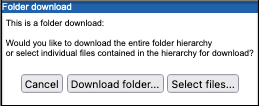
Figure 8.9: If a folder is selected when the Download... button is clicked, you get the option to download the folder (and its contents) or to select files from within the folder to download.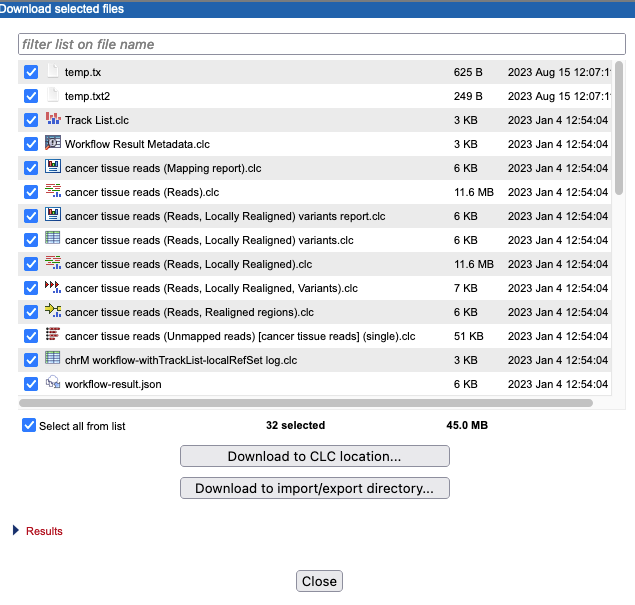
Figure 8.10: When downloading files from S3, a list of the selected files and the total size of the download is displayed. You will be prompted for a specific location to download to.Note: AWS charges for downloading data from AWS S3.
- Upload data
Data from a CLC File System Location, from an import/export directory or from AWS S3 can be uploaded to the selected folder:
There are two ways to indicate the data to upload:
- Using a graphical file chooser Click on the Add files... button to select files and folders using a graphical file browser. The first step will be to specify the source of the data to upload (figure8.11).
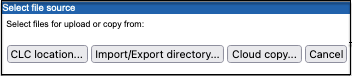
Figure 8.11: Choose the source of data to upload to AWS S3.A graphical file browser will open allowing selection of the files and/or folders to upload.
- Providing a URL URLs for data in a CLC Server File System Location are shown when browsing CLC data in the web client under Element info (
 ) | Info () and can also be obtained by using the Copy function in the Navigation Area of a Workbench.
URLs for data in an import/export area are shown when browsing import/export directories under Element info (
) | Browse server import/export directories ().
URLs for data in AWS S3 buckets are available when browsing using the web client, as described on this page.
- Using a graphical file chooser Click on the Add files... button to select files and folders using a graphical file browser. The first step will be to specify the source of the data to upload (figure8.11).
The actions that can be taken in practice depend on the permissions for accessing the selected AWS S3 bucket and settings in the CLC Server for the user logged in.
Additional notes
- If the message "No active S3 locations found." is visible in the "Browse S3 locations" tab, it means that either no AWS Connections or AWS S3 public buckets have been configured, or that there is no access for the user logged in.
- If you are logged into the CLC Server web client as an administrative user, then in addition to S3 buckets that can be used to store input data and results, the CGC system bucket will be listed (figure 8.8). This bucket has a name starting with
cgc-system. It is used for storing system files. It is not intended for storing sample data or results. It can be browsed, but there is generally no need to do so. When logged in as a non-admin user, the CGC system bucket will not listed by name and cannot be accessed. (Note: the CGC system bucket is not listed or accessible via CLC Workbenches, whether logged into the CLC Server as an admin or non-admin user.)