
Quick Search
The search field just above the Navigation Area on the left side of the CLC Genomics Workbench (figure 3.15) can be used to search for data elements and folders in all available CLC Locations.
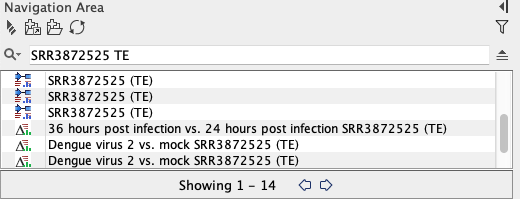
Figure 3.15: Enter terms in the Quick Search field to look for elements and folders.
Key points about using Quick Search:
- When terms are entered directly, without additional information, matches against names are reported. This includes names containing the exact word(s), those with names containing words starting with the term entered, and those with names ending with the term entered.
For searching purposes, words are the terms on either side of a space, hyphen or underscore. The names of elements and folders are split into words when indexing.
Hyphens and underscores in query terms are stripped out. For example, the query term
coli-setis equivalent to the termcoli set. - If multiple query terms are entered, only the elements and folders that meet all the conditions specified are returned.
- Search terms are case insensitive.
- A CLC URL, which specifies a specific element or folder, can also be entered. This is described at the end of this section.
Using Quick Search for searches based on names
The examples below refer to searches where the elements with the following names are present in a CLC Location.
- E. coli reference sequence
- Broccoli sequence
- Coliform set
Search with a single term to look for any element or folder with a name containing that term.
Example 1: A search for coli would return all 3 elements listed above.
Search with two or more terms to look for any element or folder with a name containing all of those terms.
Example 2: A search for coli set would return "Coliform set" but not the other two entries listed in the earlier example.
Search with two or more words in quotes to look for any element or folder name containing those words, appearing consecutively, in the order provided. Whole words must be used within quotes, rather than partial terms.
Example 3: A search for "coli reference" would find an element called "E. coli reference sequence".
Example 4: A search for "coli sequence" would not return any of the elements in the example list. In the name "E. coli reference sequence", the words coli and sequence are not consecutive, and in "Broccoli sequence", coli is a partial term rather than a whole word.
Advanced searching using Quick Search
Refining the search
Results can be limited to just items containing the search term in a specific field. For example:
path:example
would look for items with the word "example" in the path.
The fields that can be specified are:
- name The exact word provided as the value will be searched for in the names of elements and folders.
For example, searching using
name:cancerwould find an element namedcancer reads, but would not find an element with the namecancerreads.This is unlike when searching without specifying the
namefield. In that case, names are searched, but both these elements would be among the results returned.When the
namefield is specified explicitly, wild cards can be added, allowing for more specific searches to be specified. This is described further below. - path The exact word provided as the value will be searched for in the paths of elements and folders.
For example, searching using
path:tutorialswould find data elements or folders where at least one folder in the path contained the word "tutorials".Note: After elements have been moved within a CLC Location, the index may need to be rebuilt for that Location before running searches based on path contents.
- attrib_<attributename> The word provided as the value to this field is searched for in the local (custom) attribute called
attributename.For example, if a custom text attribute called "Color" had been defined, then the field could be specified as
"attrib_color. Searching usingattrib\_color:bluewould return a list of elements with "blue" assigned as the value for this custom attribute.
Using wild card characters
A search can be broadened by adding wild card characters to the search term. The field to search in must be specified when wild cards are used. Note that searches for exact words are faster than searches that also look for partial matches.
The following wild card characters are supported:
- * Add an asterisk
*to the search term to match any number of unspecified characters. Examples:name:BRCA*would return elements with names containing terms like BRCA1, BRCA2, and BRCA1gene.name:*cer*would return elements with names containing the letters "cer" anywhere in them.name:ca*erwould return elements with names containing at least one word that starting with "ca" and ens in "er", with any number of characters, or no characters, in the middle.
- ? The
?character represents exactly one character. For example, searching forBRCA?would find BRCA1 and BRCA2, but would not find BRCA1gene.Multiple
?characters can be used. For example, a search forname:0018??would find all data elements or folders where the name of the folder or element included a word containing (just) the numbers "0018" followed by two additional characters. - ~ Appending a tilde to the search term looks for fuzzy matches, that is, terms that almost match the search term, but are not necessarily exact matches. For example, :
ADRAA~will find terms similar to ADRA1A.
Excluding results
Elements or folders containing specified terms can be excluded by preceding the whole query term with a - symbol. For example, -name:single* would exclude any elements or folders with names that include the term "single". Multiple exclusions can be specified in a single search. For example:
path:tutorials name:0018?? -name:single* -path:test
Search results
When there are many hits, only the first 50 are shown initially. To see the next 50, click on the Next ( ) arrow just under the list of results.
The number to return initially can be configured in the Workbench Preferences.
Finding the element or folder in the Navigation Area
You can move the focus from a search result to its location in the Navigation Area by doing one of the following:
- Click on a search result while keeping the Alt key depressed.
- Right-click on a search result and click on Show Location in the menu presented.
Quick Search history
You can access the 10 most recent searches by clicking the
icon ( ) to the left of the search field (figure 3.16). When one of these is selected, the search is automatically run again.
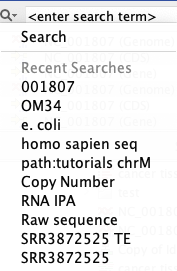
Figure 3.16: Recent searches are listed and can be selected to be re-run by clicking on the icon to the left of the search field.
Searching using CLC URLs
A particular data element or folder can be quickly found by entering its CLC URL into the Quick Search box (figure 3.17). An example of when this is useful is when working using a CLC Server and sharing the location of particular data elements with another person.
To obtain and use a CLC URL:
- Copy the element or folder in your Navigation Area (details) .
- Paste the contents of the clipboard (i.e. the copied information) to a place that expects text. The text that will be pasted is the CLC URL for that element or folder.
Examples of where text is expected include a text editor, email, messaging system, etc. It also includes the Quick Search field.
- Paste the CLC URL into the Quick Search field above the Navigation Area to locate the element or folder it refers to.
If you move the element or folder within the same CLC Location, the CLC URL will continue to work.
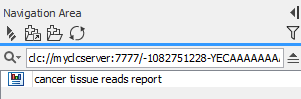
Figure 3.17: Data elements can be located using a CLC URL.