
Using the Biomedical Genomics Workbench: Set up connection between Biomedical Genomics Workbench and your CLC Genomics Server
- Start Biomedical Genomics Workbench in administrator mode (this is necessary in order to be able to perform the next step).
- The next thing to do is to allow access from your Biomedical Genomics Workbench to your CLC Genomics Server. To do this, you need the CLC Workbench Client Plugin.
To install the CLC Workbench Client Plugin from Biomedical Genomics Workbench:
Help in the Menu Bar | Plugins and Resources... (
 )
)
or Plugins (
) in the Toolbar
- The last thing to do is to log into the server from Biomedical Genomics Workbench. This is done using the menu bar as shown in figure 2.5:
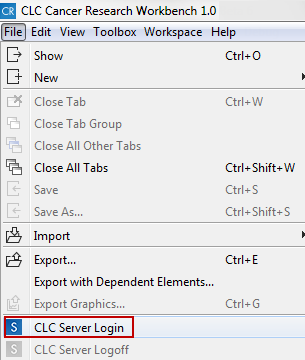
Figure 2.5: Log into the server via "File" in the menu bar.When you are logged into the server, you can see in your Navigation Area that you have an extra CLC_References repository. The little blue box with an S on one of the CLC_References repositories indicates that this is the server repository. This is illustrated in figure 2.6.
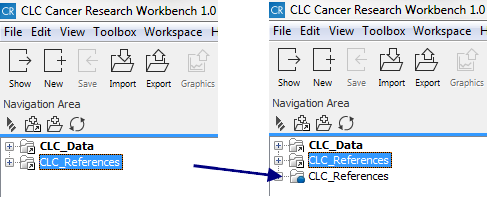
Figure 2.6: When you are logged into a server, you can see the server repository "CLC_References", which is marked with a blue box with an S.