
Workbench Licenses
When you start up a CLC Genomics Workbench installation for the first time, the License Assistant, will appear (figure 1.4).
The License Assistant can also be opened from a running Workbench by clicking on the Update License Details button at the bottom of the License Manager. Open the License Manager by going to
Help | License Manager ( )
)
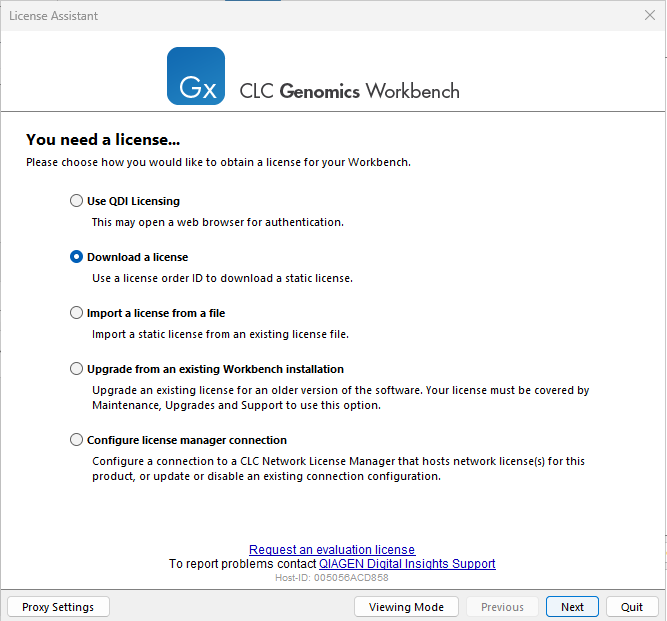
Figure 1.4: The License Assistant provides access to licensing options.
When using a CLC Genomics Workbench installed in a central location, making changes to licensing usually requires administrative privileges. On Linux and Mac, this means logging in as an administrator before starting the software. On Windows, right-click the program shortcut and choose "Run as Administrator".
When no license is available, CLC Workbenches can be run in Viewing mode, allowing data to be viewed and exported. Some import and analysis functionality is also available in this mode.
Options available in the License Assistant are listed below, and described in detail in the sections that follow.
- Use QDI Licensing Use a license available to you via the QDI Licensing Service. This may open a web browser for authentication.
- Download a license Use the license order ID provided when you purchase the software to download and install a static license file.
- Import a license from a file Import an existing static license file.
- Upgrade from an existing Workbench installation If an earlier version of the CLC Genomics Workbench is installed on the same system, and your license is covered for Maintenance, Upgrades and Support (MUS), select this option to use the static license file to get an updated license file for this Workbench.
- Configure license manager connection Select this option to configure a connection to your organization's CLC Network License Manager.
For downloading or upgrading static license files on non-networked systems, see Download a license on a non-networked machine.
Static license files are tied to the host ID of the machine they were downloaded to. If you are using a static license, it is covered for MUS, and you need to change the machine the software will run on, please contact our Support team (ts-bioinformatics@qiagen.com).
Subsections
- Use QDI Licensing
- Download a license using a license order ID
- Import a license from a file
- Upgrade license
- Configure license manager connection
- Download a static license on a non-networked machine
- Viewing or updating license information