
User statistics
Information about user activity is provided in the User statistics area, under
Management ( ) | Server status (
 )
)
Users that are logged in or have previously logged into the CLC Server are listed in the table, with information about their sessions, the jobs they are running and their finished processes (figure 12.3). From this area, users can be logged out, processes can be stopped, finished processes can be removed, and details about jobs and login sessions obtained.
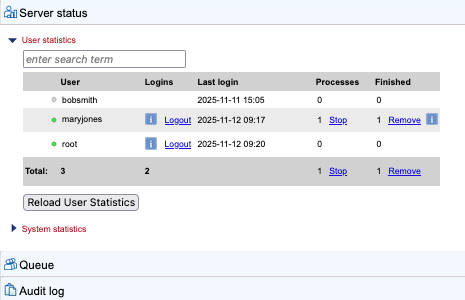
Figure 12.3: User statistics information. Three users have logged into this server, with users root and maryjones currently logged in. The user maryjones has one finished process and one running process.
User sessions
Clicking on the information icon in the Logins column provides detailed session information (figure 12.4).
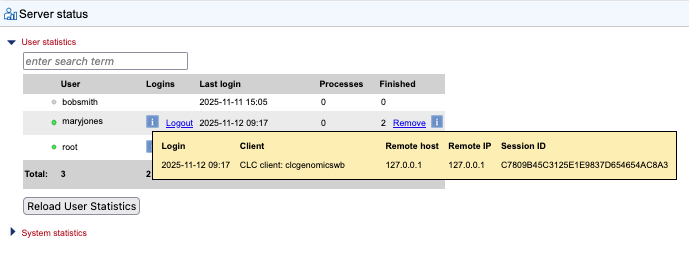
Figure 12.4: Detailed session information is displayed after clicking on an information icon in the Logins column.
Clicking on a "Logout" link allows an admin to log a user out of the CLC Server. In the confirmation dialog that opens, a message to the user can optionally be provided (figure 12.5). This message is displayed in the user's active session. For example, if they are logged into a Workbench, a dialog will pop up saying they have been logged out of the CLC Server, followed by the message that was provided in the dialog. Logging a user out does not stop jobs already submitted or running on the server.
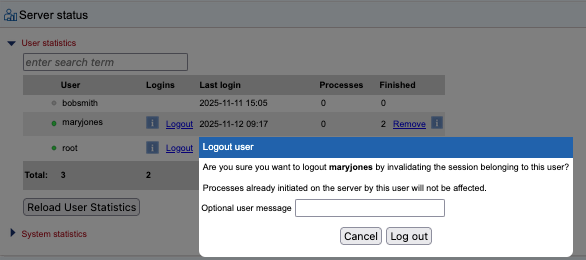
Figure 12.5: The Logout link for maryjones has been clicked. An optional message to be presented in the client software being used can be provided in the confirmation dialog.
Process information
Clicking on the information icon at the end of a row provides information about running and finished processes owned by that user (figure 12.6). Clicking on the link to the audit log, provided at the end of each line, opens the Audit log tab, filtered to show the entries for just that process (figure 12.7).
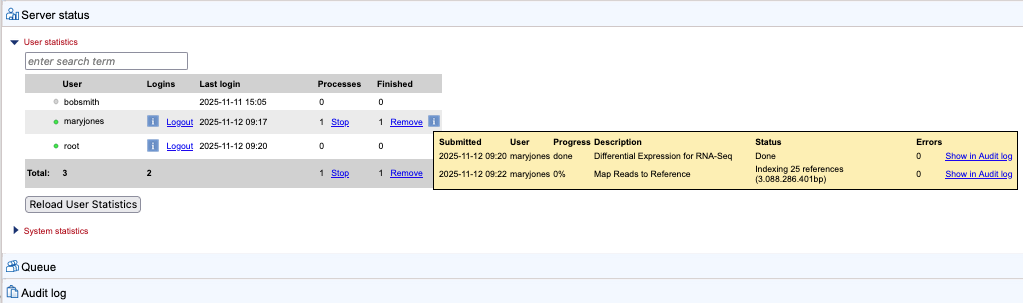
Figure 12.6: Information about processes run by maryjones is shown after clicking on the information icon at the end of that user's row in the user statistics table.
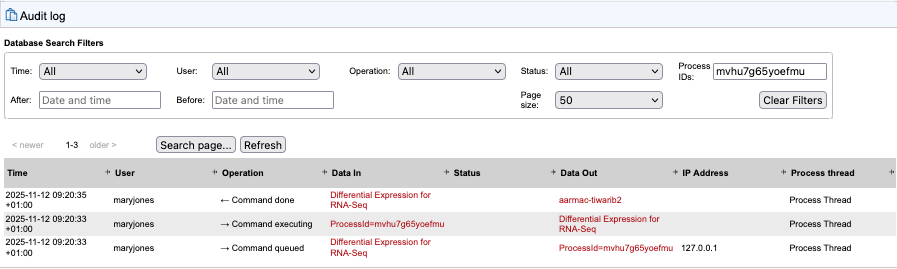
Figure 12.7: The audit log entry for a process run by maryjones, after clicking on the link to the audit log in the user statistics table.
Processes can be stopped, and finished processes can be removed, by clicking on the "Stop" or "Remove" links, respectively. Clicking on these links in the "Total" row, at the bottom of the table, allows all running processes to be stopped or all finished processes to be removed. If a "Stop" link is clicked, the confirmation dialog provides a button for opening the Queue tab, where processes can be stopped individually (figure 12.8).
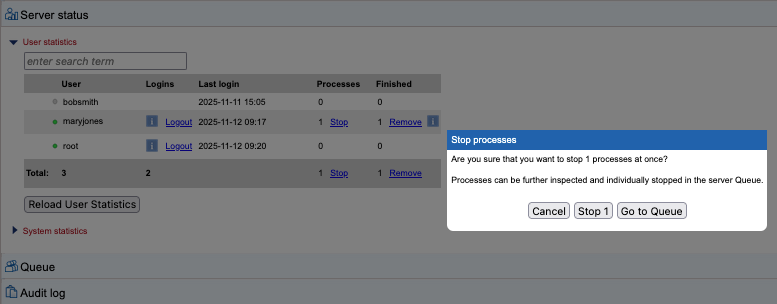
Figure 12.8: The Stop link for processes being run by maryjones has been clicked. The confirmation dialog includes information about how many processes will be stopped by taking this action, and provides a button to open the Queue tab to see the process, where jobs can be stopped individually.