
Bookmarks
Bookmarked items are listed under the Boomarks tab in the Browser area of the CLC Workbench. Bookmarks can be made to files and folders stored in CLC data areas, as well as to items in AWS S3, listed under the Remote Files tab. Bookmarks are automatically updated if the items they point to are moved.
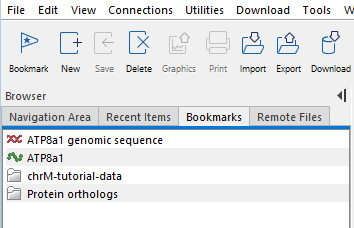
Figure 3.1: The Bookmarks tab is available in the Browser area in the left side of the Workbench. Items can be bookmarked by selecting them in the Navigation Area and then clicking on the Bookmark button in the top toolbar.
Hovering the mouse cursor over an element in the Bookmarks tab reveals a tooltip with information about where the item is stored (figure 3.2). For items stored in a CLC Server File System Location, the Location will be reported as CLC Server. Items stored in AWS S3 will have the Location reported as Cloud.
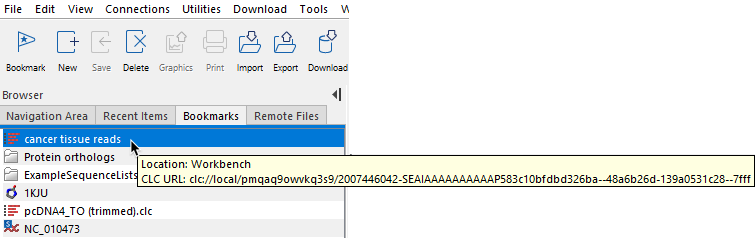
Figure 3.2: Hovering the mouse cursor over an element in the Bookmarks tab reveals a tooltip with information about where the item is stored.
Double clicking on a bookmark in the Bookmarks tab opens the bookmarked item3.1.
To navigate to the item in the Navigation Area or the Remote Files tab, as relevant, right click on a bookmark and choose the option to locate the element (figure 3.3).
Bookmarks to items in CLC Server File System Locations are disabled when not logged into the CLC Server. Double-clicking on such a bookmark opens the CLC Server Connection dialog. Double-clicking on a bookmark to an item in an AWS S3 bucket that is not available in the Workbench session will result in a message being presented about why the item cannot be opened.
To create a bookmark, select the file or folder of interest under the Navigation Area tab or under the Remote Files tab, and then do one of the following:
- Click on the Bookmark button ( (
 )) in the top toolbar.
- Use the keyboard shortcut Ctrl + D or
 + D.
+ D.
- Use the menu option File | Bookmark.
To delete a bookmark, select it under the Bookmarks tab and do one of the following:
- Click on the Delete button ( (
 )) in the top toolbar.
- Use the menu option Edit | Delete.
Deleting a bookmark does not affect the item the bookmark referred to.
When created, a bookmark is assigned the same name as the item being bookmarked. The name can be changed using the Rename bookmark... option in the right-click menu (figure 3.3). This does not affect the name of the item the bookmark refers to. The original name of the bookmark is included in the tooltip for that bookmark (figure 3.4).
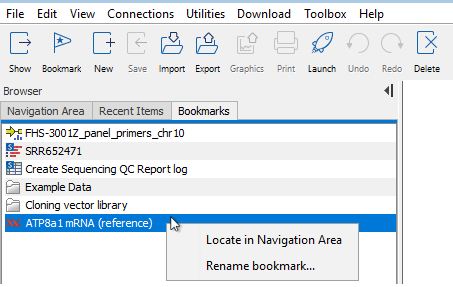
Figure 3.3: Right-click on a bookmark to reveal a menu with an option to find the item in the Navigation Area or to rename the bookmark.
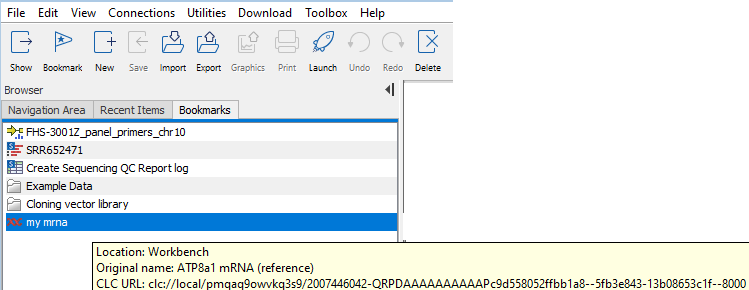
Figure 3.4: Information about the original name of an item is shown in the tooltip if a bookmark has been renamed.
Footnotes
- ... item3.1
- Opening an item stored in AWS S3 will trigger the download of the item from S3, which AWS may charge for.